To make the creation of multilingual material easier, it is now possible to export all texts in a module, edit them yourself or hire a translation agency to do it for you and finally import the texts for the new language. The files use the XLIFF format, which is the most widely accepted translation format.
If you have several languages to be translated into a material, a file for each language is exported and imported.
NOTE: After exporting language files, DO NOT edit the structure of the module until the file is imported back to the module. The exported file contains unique Id's for each text. If the structure is changed, these Id's will change and it is not possilble to import the file.
How does it work then? Here are the steps.
- If you have not already done so, add the new language to the material.
This is done by opening the module settings, selecting the Language tab and click on Manage languages. The languages the module currently contasins are then displayed.
Click Add and select the desired language from the list. Depending on whether the language is supported by Google translate or not, different options are displayed for copy or automatic translation of content. If you are transltaing to a language supported by Google translate you may choose which method to use. If the language is not supported by Google translate you can only copy the content. - In the same dialogue, select the new language and click Export translations.
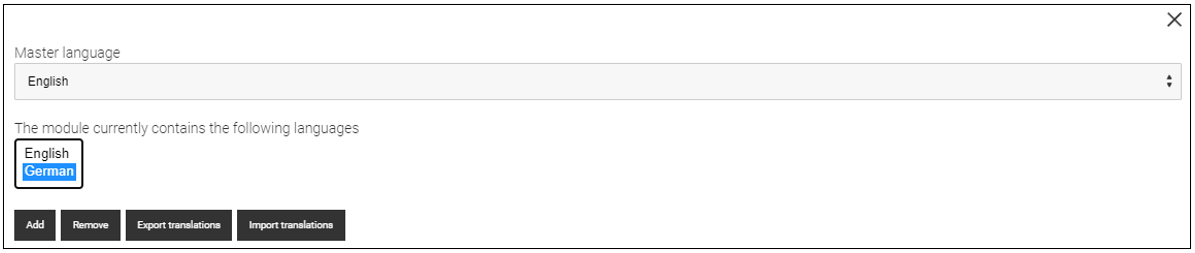
A file with .xlf file extension containing all texts is then saved to your computer. - The saved file can be sent to a translation agency or you can edit it yourself. If you edit yourself, it is recommended to use a translation tool that can handle XLIFF files, For example Poedit (https://poedit.net/).
- When the translation is complete, import the file by repeating step 2 with the exception that you now click Import translations and select the correct .xlf file for the corresponding language.
- Preview the module in the new language and verify that the translated texts are displayed correctly.
0 Kommentarer