The Photos app is probably your best option if you're not interested in purchasing a more powerful video editing software. It's built-in to Windows 10/11 and is really easy to use.
This guide describes how to trim the beginning and/or end of the video.
The Photos app also has more advanced functions such as cutting out more than one part, adding texts, adding movement, changing speed and so on. These features are not in included in this guide but if you are interested there are plenty of guides on Youtube and other sites that describes how to use them
Trim the beginning and/or end of the video
This is ideal if you just need to cut out some unnecessary video at the start or end.
- Right-click on a video file and click “Open with” and choose Photos.
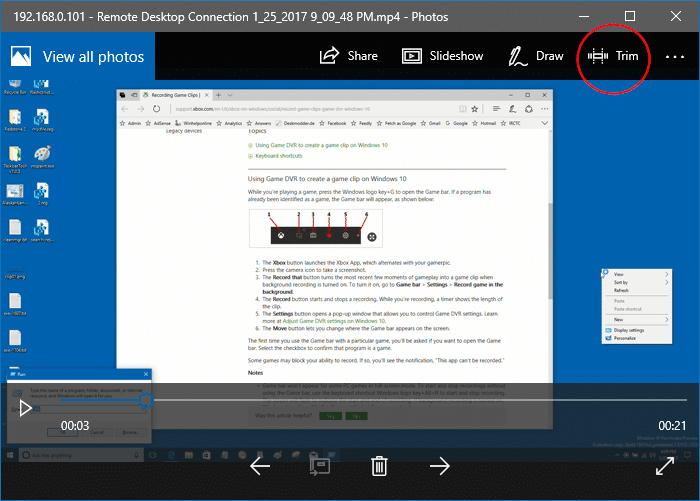
- On Windows 10, click the Trim button at the top.
 On Windows 11, click on the Video trim icon (Ctrl + E) to launch the trim window.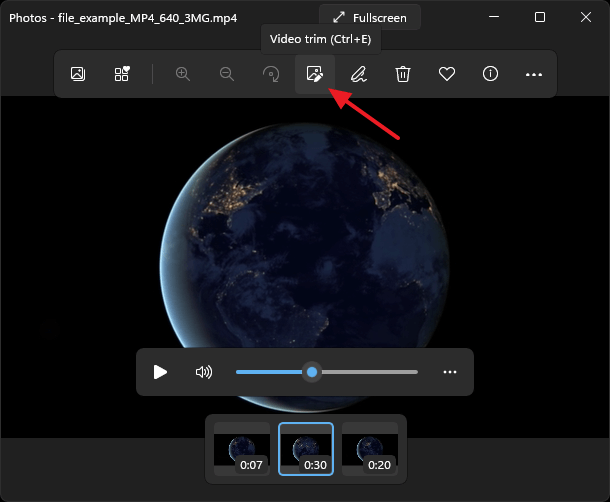
- In the next screen, select the portion of the video you need, by moving the start and end sliders accordingly.
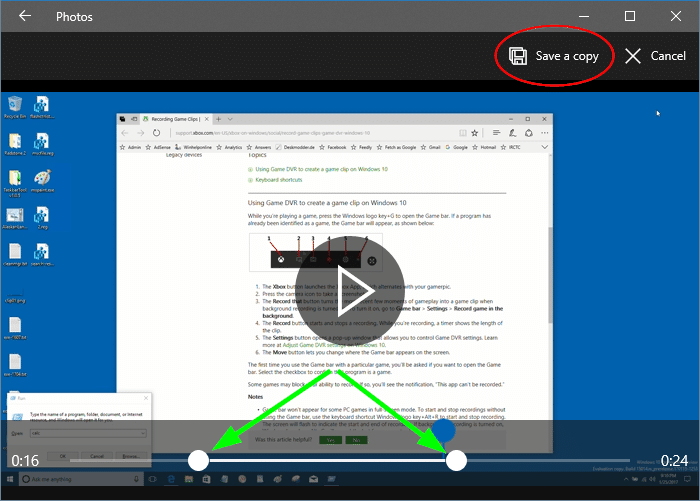 On Windows 11, you’ll see the “Save as” button.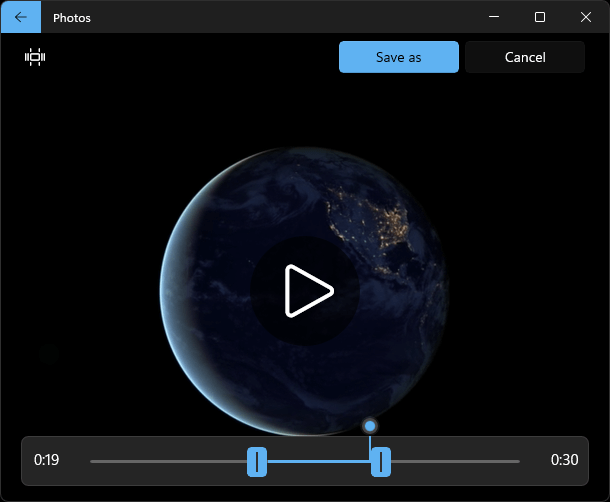
- Save the selected portion of the video to a separate file, by clicking “Save a copy”/"Save as".
The selected portion is now saved to a video file in the same folder, with the letters “Trim” added to the file name. If the file name of the original video is Remote_Desktop.mp4, the trimmed copy will be named Remote_DesktopTrim.mp4.
0 Kommentarer