A new feature has been introduced where you can set a module or a plan to report as completed in an LMS when a percentage of the training has been completed.
This means that the user can select to perform certain parts of the training and still be registered as completed for it
In a module
In a module it is possible to set Pages that must be completed to mark the module as completed in the LMS to a percentage of the total amount of completed pages.
To enable the feature, open an existing module in edit mode or create a new one in author. In Module settings, select Percentage for Pages that must be completed to mark the module as completed in the LMS and type in the desired percentage in the Percentage box.
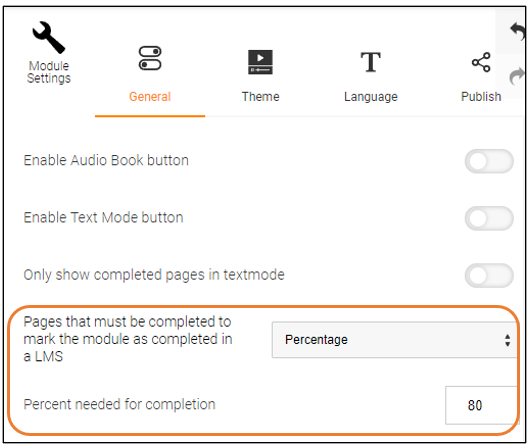
Once this is done you can export the module as a Scorm package or copy an LTI link and use in an LMS. In the LMS it will be reported as Completed once the completion percentage reaches the set percentage
In a plan
In a module plan it is possible to set “Completion mode” to a percentage of the total amount of completed modules.
For instance, if a plan has 5 modules and you set “Completion mode” to 80%. The plan would be reported as complete once the user has completed 4 out of the 5 modules.
It can also supports an average of partially completed modules. For instance, if a plan has 3 modules it will be reported as completed if a user completes 80% of the first one, 100% of the second one and 60% of the third one. (80 + 100 + 60) / 300 = 240 / 300 = 0.8 = 80%.
To enable the feature, open an existing plan or create a new one. In Completion mode select Percentage and type in the desired percentage in the Percentage box.
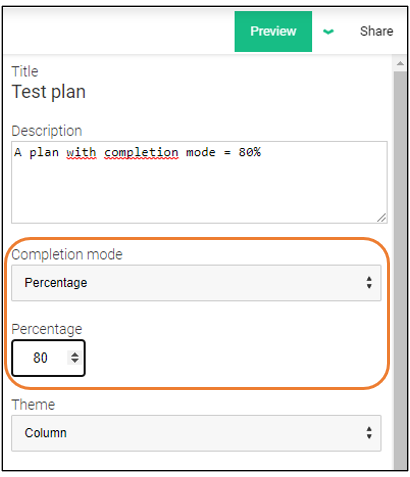
Once this is done you can export the plan as a Scorm package or copy an LTI link and use in an LMS. In the LMS it will be reported as Completed once the completion percentage reaches the set percentage.
0 Kommentarer