As soon as your first participant on a Learning Zone has completed a Hand-in, the quick view for Hand in assignments will be visible on your Learning Zone.
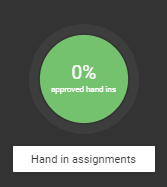
Locate and click the button Hand in assignments.
A dialogue window will appear.
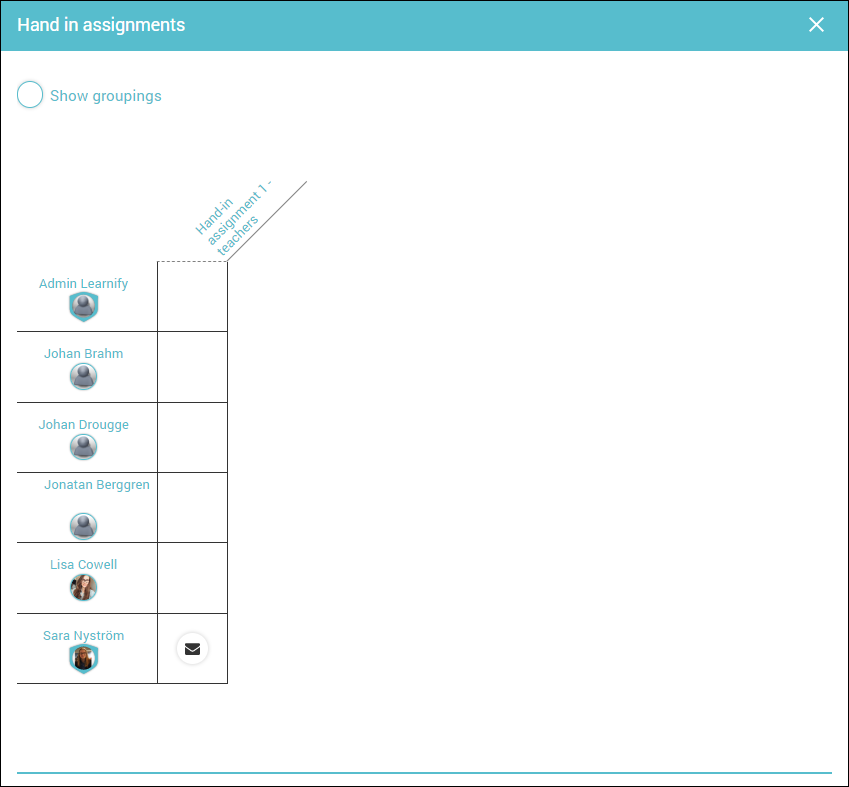 Locate and click the icon of an envelope to open a hand-in for a specific participant.

Here’s how one hand-in for a specific participant can look.
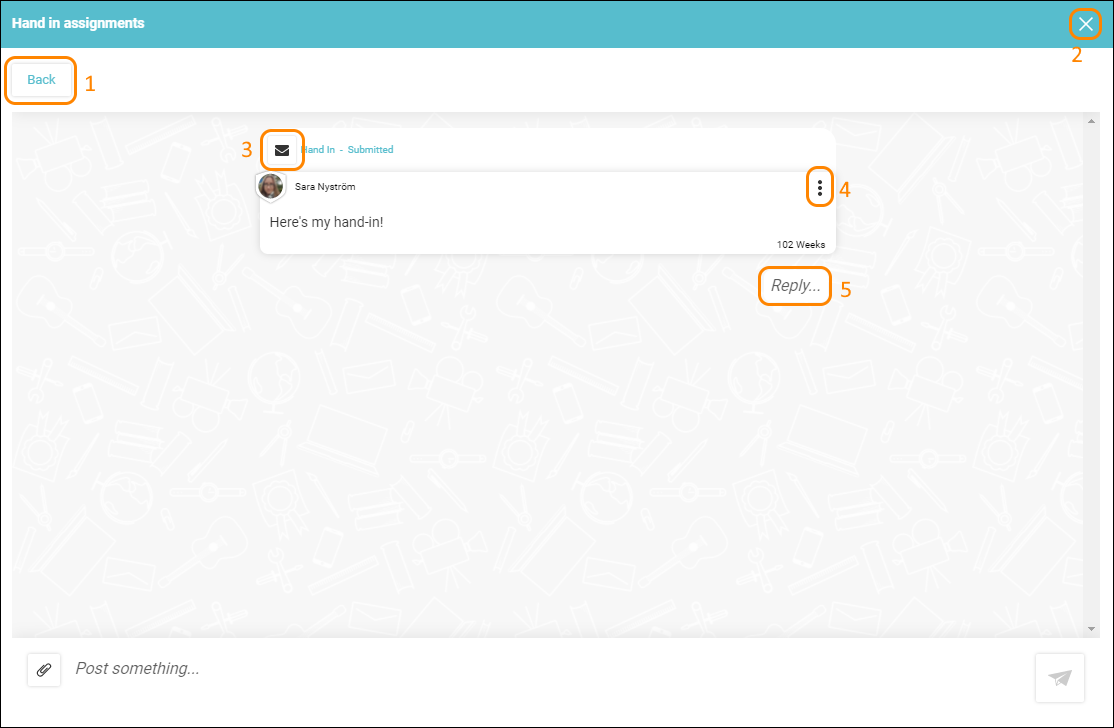
You can:
- Go back to the Learning Zone
- Close the dialogue window
- Set a status on the hand in assignment (Submitted, Recieved, Approved, Needs supplementation)
- Edit or delete the hand-in
- Click Reply to start a discussion or give feedback to the participant.
Locate and click the button with the icon of an “x” to close the dialogue window, and your Learning Zone will be updated.
TIP! As soon as you close the dialogue window, the Learning Zone will update and a notification will be sent to the participant.
0 Kommentarer