Let your users make their preferences heard! Voting lets you post alternatives that your users can vote (anonymously) on.
To get started, locate and click on the tool Add interactions and chose the option Voting, the icon with the 3 parallel slider bars on.
An object is placed on your editing space.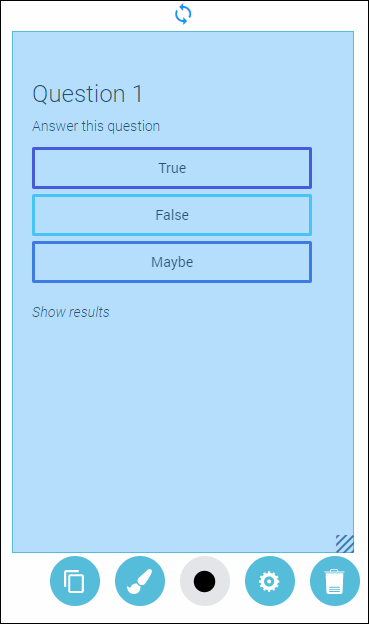
To edit your object double click on it.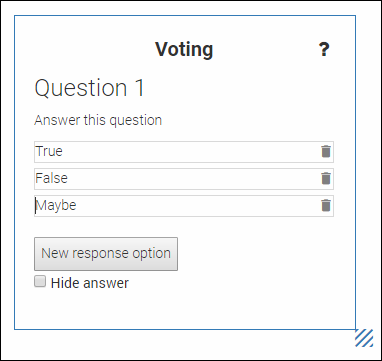
Click on the text you want to change and type in a question, instructions or the voting alternatives.
To delete alternatives, click the small icon of a trash bin to the right of the alternative you want to delete.
To add more alternatives, click on the button New response option.
If you want to keep the result secret, tick the checkbox Hide answer.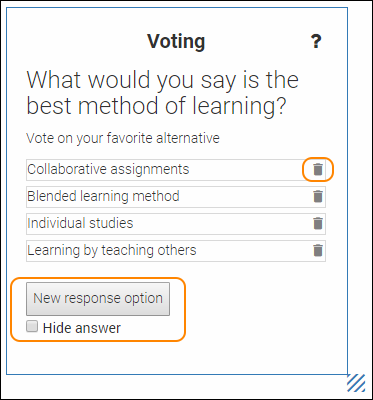
Once you are done editing, click anywhere on the white editing area (outside the object) to save all changes.
This is how an edited Voting can look: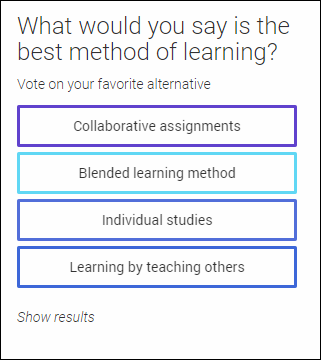
TIP! Since you are now in editing mode, you can’t test the Voting. To test it you have to go into Preview mode. Locate and click the button Preview and your page will open in a new tab.
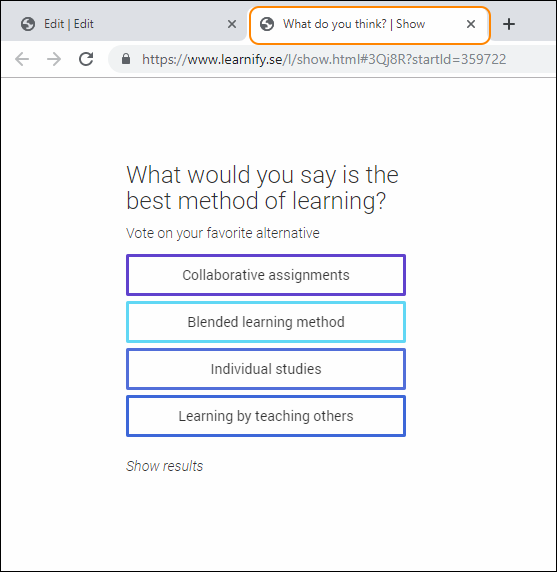
To vote click your preferred alternative and the results will show in real-time (unless you - the owner have opted to keep the result hidden).
Click the text Show alternatives to see the alternatives again.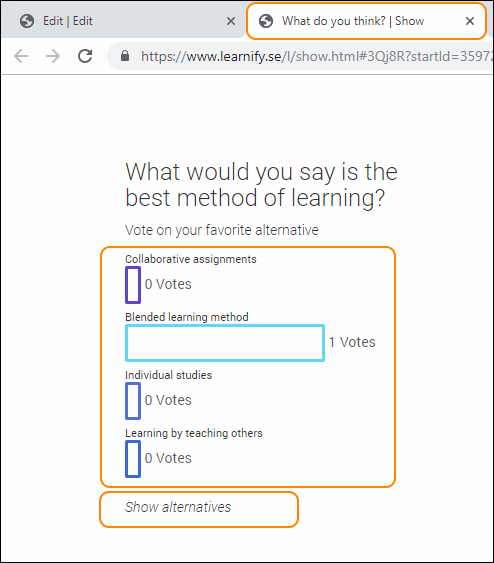
To get back to editing mode, close the active browser tab.
To save your changes, click anywhere on the editing area, outside the object.
To move your object, drag and drop it with the help of your mouse and place your object anywhere on the white editing area.
All settings for your object - see the guide “Settings for your object”.
0 Kommentarer