You can upload all types of files to your page in Presenter. Many file types will be shown “live” and not as a link. You can, of course, set the file to be shown as a clickable link instead of the live view. Use object settings to do so - see the guide “Advanced settings for your object”.
To get started, locate and click the tool with the icon of a paperclip, then click on the option you want to use: Upload files or Streaming video.
In this guide, we will use the tool option Upload files to demonstrate how the tool works. When you use Upload files, the option icon with a cloud and an arrow, it works just as when you attach a file to an email. 
Uploaded images, video, Microsoft office and audio files are all shown in a live view.
The file you choose to upload will be shown as an object on your editing area.
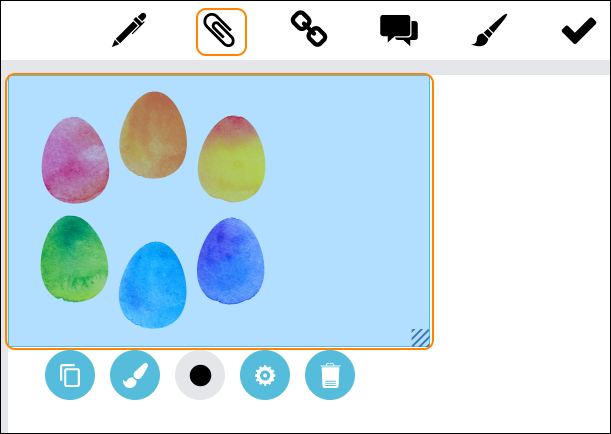
To edit your object, double click it.
To save your changes, click anywhere on the editing area, outside the object.
Settings for your object - see the guide “Settings for your object”.
TIP! Show link lets you change a live view of an uploaded file to just showing a clickable link. See our guide “Settings for your object”.
0 Kommentarer