This option lets you access a url for the material. Anyone with access to the link can then access the material. You can post the link anywhere you want. Send it out to certain people via email, post it on your LMS or intranet for example.
To access the link, locate and click the button Share and choose Copy link.
A dialogue window opens.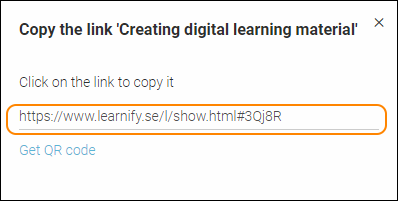
Click on the link to copy it, or highlight the link and copy it to your clipboard, the way you are used to.
Now you are ready to paste the link anywhere you want.
You can also get a QR code for your material. In the dialogue window, mentioned above, locate and click the link Get QR code.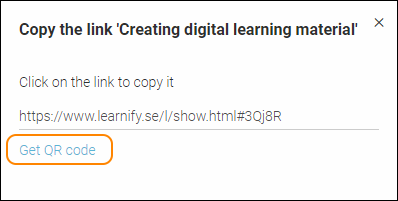
The QR code for your material will open in a new tab. Right-click on the image and save it to an appropriate place on your hard drive. 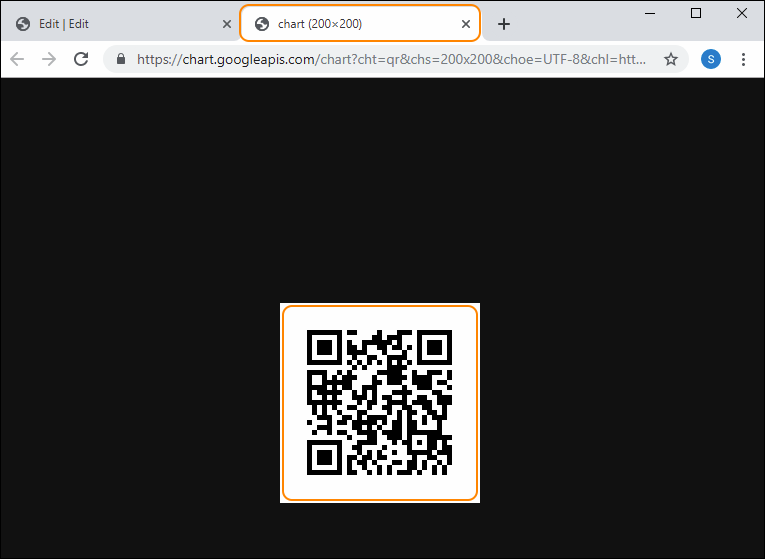
Close the newly opened tab to get back to Presenter.
To get back to edit mode in Presenter, you have to close the dialogue window.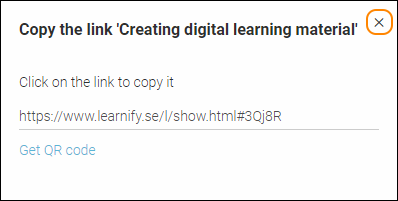
0 Kommentarer