You can add a like button to your page.
Locate and click the tool Add interactions and choose the option Like.
An object is placed on your editing area.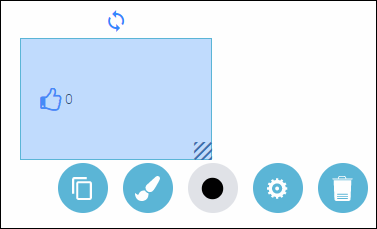
Now, you can, of course, move the object and change its size, but that’s it really.
TIP! Since you are now in editing mode, you can’t test the Brainstorm. To test, you have to go into Preview mode. Locate and click the button Preview and your page will open in a new tab. 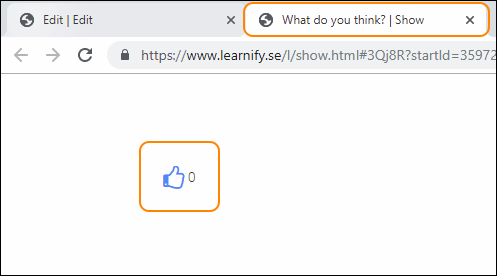
Once your users start clicking on the Like button, the number to the right of the Like button will change.
To get back to editing mode, close the active browser tab.
To save your changes, click anywhere on the editing area, outside the object.
To move your object, drag and drop it with the help of your mouse and place your object anywhere on the white editing area.
All settings for your object - see the guide “Settings for your object”.
0 Kommentarer