Let your users add their own photos to your page. With Add interactions option Photo album, you can add a shared photo album for the users to upload their own photos in. The photo album is accessible to all users that have access to the page.
Locate and click the tool Add interactions and choose the option Photo album - the icon that looks like a camera.
An object is placed on your editing area.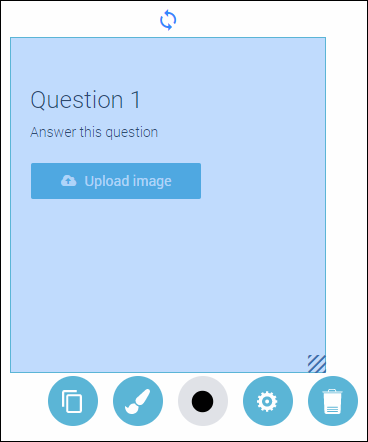
To edit the object, double click on it. Click on the text you want to change and type in a question or some instructions. 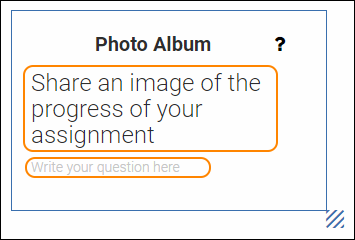
Once you are done editing, click anywhere on the white editing area (outside the object) to save all changes.
This is how an edited Photo album can look: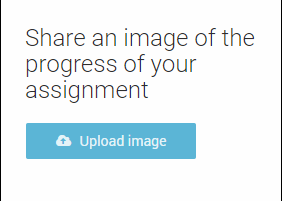
TIP! Since you are now in editing mode, you can’t test the Brainstorm. To test, you have to go into Preview mode. Locate and click the button Preview and your page will open in a new tab.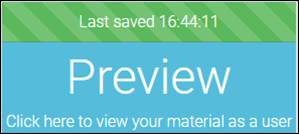
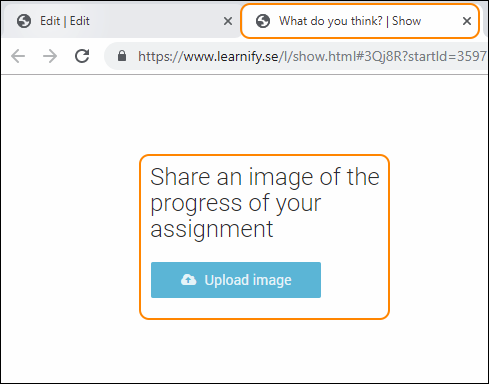
To use the Photo album, you simply click on the button Upload image and proceed in the same way you would when attaching a file to an email. Note that the file, in this case, has to be a .jpg.
The photo album shows any uploaded image as a small thumbnail. To view the image in full size, simply click on it.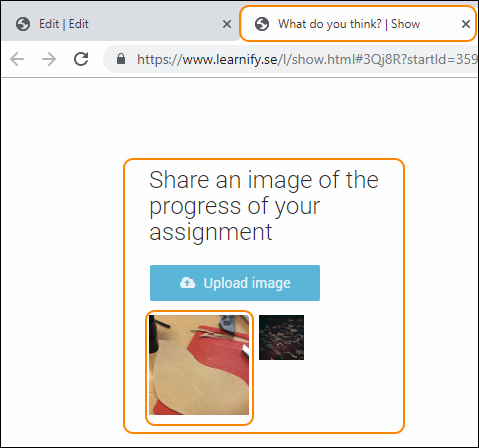
To get back to editing mode, close the active browser tab.
To save your changes, click anywhere on the editing area, outside the object.
To move your object, drag and drop it with the help of your mouse and place your object anywhere on the white editing area.
All settings for your object - see the guide “Settings for your object”.
0 Kommentarer