The tool Brainstorm lets you add an anonymous brainstorm to your page. You can, for example, ask a question and your users can post short free-text answers. You can choose between letting all users see all posts or only their own answers. (You can choose to display all answers at a time of your own choosing.)
As the owner of the page, you can, of course, see all posted answers at all times.
To get started, locate and click the tool Add interactions - the icon that looks like two speech bubbles, then click on the second icon from the left - an icon of a lit light bulb- Brainstorm.
An object is placed on your editing area.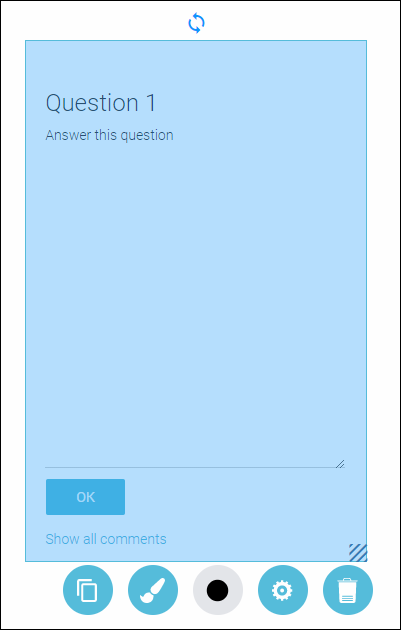
To edit your object double click on it.
Click on the text you want to change and type in a question or instructions.
Once you are done, go down and tick the checkbox Hide answers, if you want your users to only see their own posted answers and no one else’s. If you leave the checkbox unticked, your users will see all answers posted by all users. If you want to restrict your users to only be able to post one answer per person, tick the checkbox Only one answer per user. Leave the checkbox unticked if you want to let your users be able to post as many answers as they would like.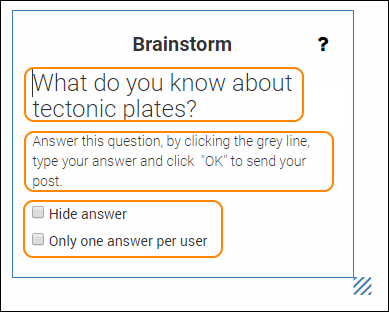
Once you are done editing, click anywhere on the white editing area (outside the object) to save all changes.
This is how an edited Brainstorm can look: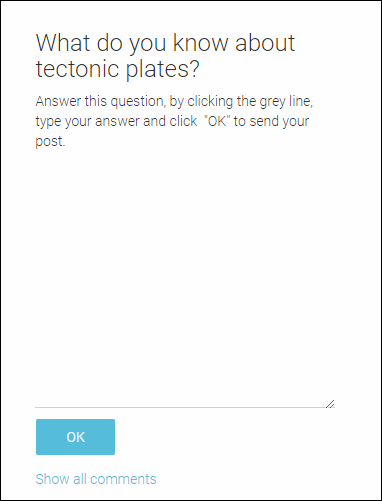
TIP! Since you are now in editing mode, you can’t test the Brainstorm. To test it you have to go into Preview mode. Locate and click the button Preview and your page will open in a new tab. 
Click the text Show all answers if you want to see all posted answers. Please note that only you (who owns the page) can see the “x” on the answers. This gives you the option to moderate (delete) inappropriate answers.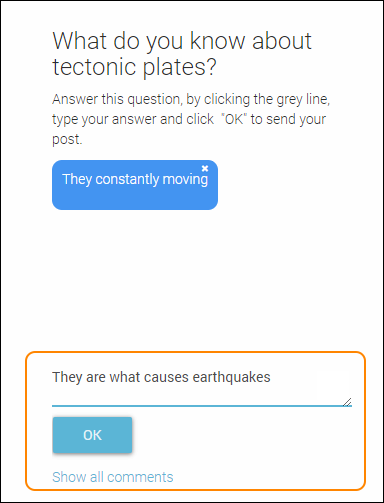
To get back to editing mode, close the active browser tab.
To save your changes, click anywhere on the editing area, outside the object.
To move your object, drag and drop it with the help of your mouse and place your object anywhere on the white editing area.
All settings for your object - see the guide “Settings for your object”.
0 Kommentarer