In Presenter, you can create your own tailored navigation, called Hotspot. Hotspot lets you create a clickable area that you can place anywhere on your page - for example on top of images. When a user clicks on the hotspot, they are taken to the URL you have set for the hotspot, or to a page within your material/module.
We’ll use the example of creating a clickable button that takes the user to the start page of our material.
We have uploaded an image of a house that we want to turn into a clickable button that takes our users to the first page of the material.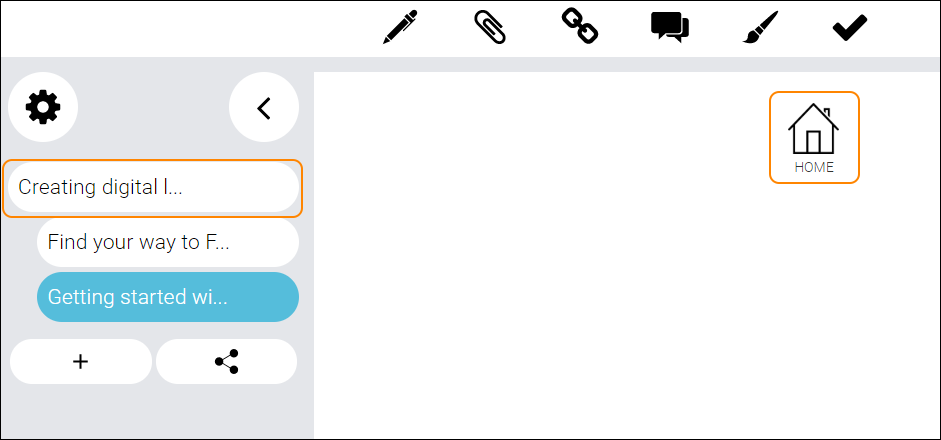
Locate and click the tool Add link to content, and choose the option Create hotspot.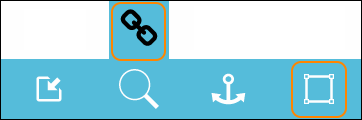
A dialogue window opens.
The default option is “Go to another page”, which means that the hotspot will lead the user to another page within the material.
Click the line with the small arrow to choose among the pages in your material. Once you are done, click the button Ok.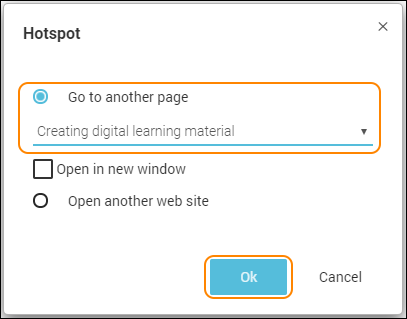
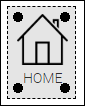
The hotspot is placed as an object on to your editing area.
Use drag-and-drop to move the hotspot on top of the image you want to be clickable.
To resize the hotspot, hold down the cursor with the left mouse button over the small striped icon in the bottom right hand of the object, and drag the size to the size you want it to have.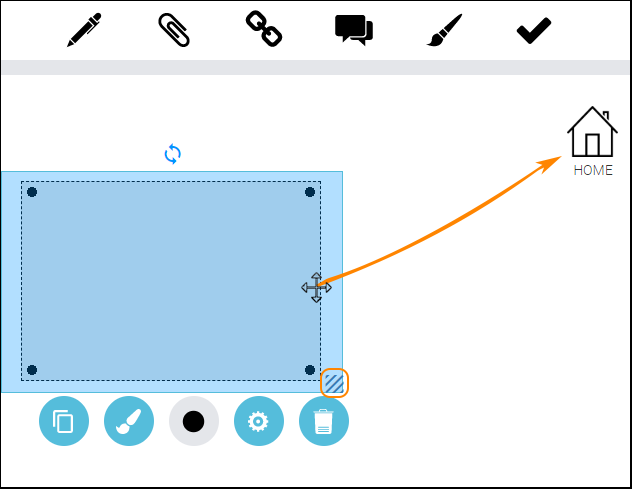
To check that the hotspot works, locate and click the big button Preview in the bottom right-hand corner of the editor.
This will open your material in a new tab and you can view it as it will look for your users.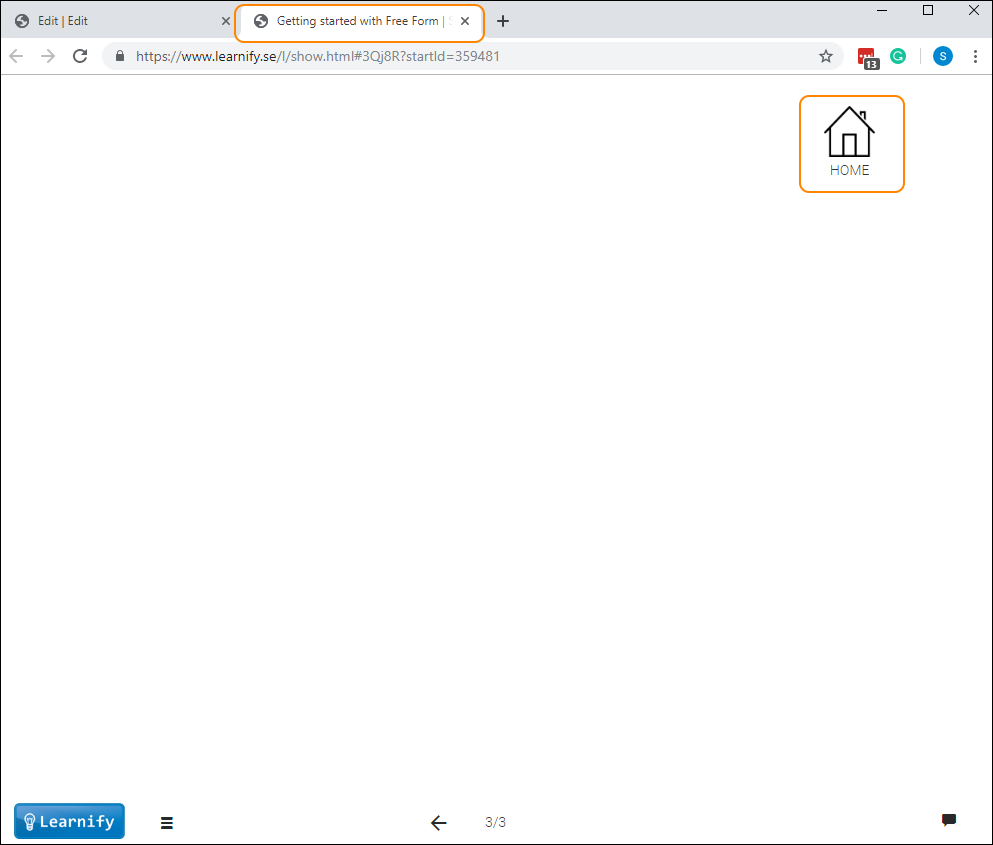
Note that the grey area for the hotspot is only visible in edit mode and will not be visible for your users.
Click the icon of the house to see if the navigation works.
To go back to edit mode, close the active tab.
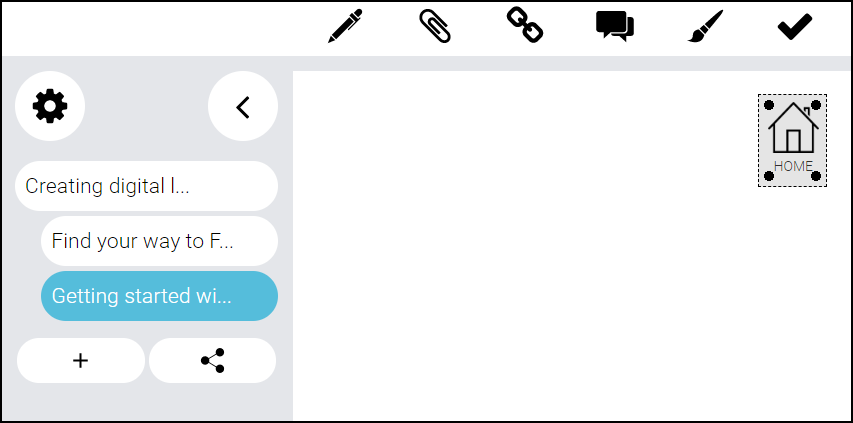
To edit your object double click on it.
To save your changes, click anywhere on the editing area, outside the object.
To move your object, drag and drop it with the help of your mouse and place your object anywhere on the white editing area.
All settings for your object - see the guide “Settings for your object”.
TIP! If you are using many hotspots on the same page, the setting “Layers” will be of use to you, as you want to make sure that all the hotspots are places on the top layer. See the guide “Settings for your object”.
0 Kommentarer