In this example, we will use a YouTube video from TED-Ed.
Locate and click the tool Add link to content - the icon that looks like a chain, then click on the first icon from the left - an icon of a square with an arrow - Embed a resource from the internet.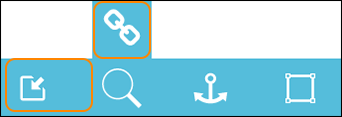
A dialogue window opens up.
Paste the link (URL) to the YouTube video you want to link in the textbox in the top part of the dialogue window and then locate and click the button Embed.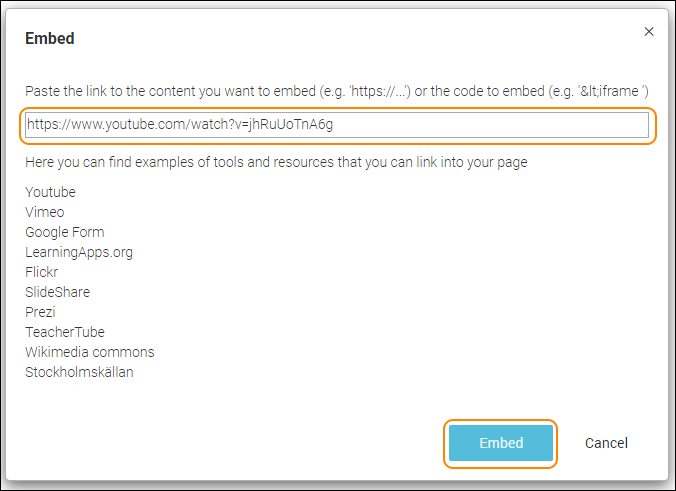
An object will be placed on your editing area. (It might take some seconds - please have patience.)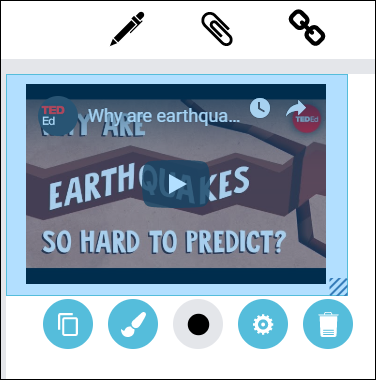
To edit your object double click on it.
To save your changes, click anywhere on the editing area, outside the object.
To move your object, drag and drop it with the help of your mouse and place your object anywhere on the white editing area.
All settings for your object - see the guide “Settings for your object”.
0 Kommentarer