To see the settings for an object, simply click on it once to highlight it and 5 buttons will appear on the bottom, 1 in the right-hand bottom corner and 1 on the top middle of the object.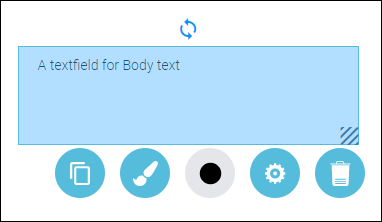
The revolving arrows let you Rotate the object. Simply hold down your left mouse button on the arrows and drag the mouse to rotate the object. 
The striped icon in the bottom right-hand corner of the object lets you change the size of the object. Simply hold down your left mouse button on the arrows and drag the mouse diagonally to your right to change the size.
The 5 buttons on the bottom of your object:
- Copy to Clipboard - creates a copy of the object and its placement on the editing area. Use keyboard shortcuts to paste the copied object.
- Add background shape - lets you add frames or background shapes to your object.
- Choose a colour for shapes
- Advanced settings - change properties, size and position of your object.
- Delete.

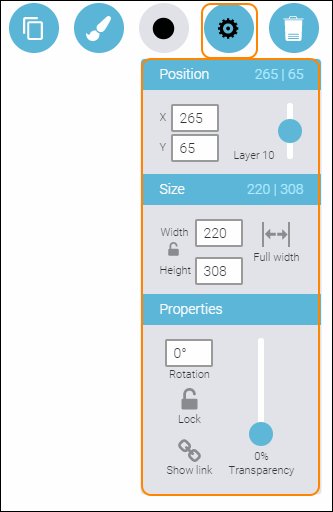
Advanced settings for your object
Position
View and change exactly where on the editing area your object is placed.
Layer lets you arrange objects on top of each other.
Size
View and change the size of your object. Click the box with the numbers (pixels) and start typing to change them.
You can lock the width/height relation of your object by clicking the small padlock icon to the left of the size boxes.
Full width: makes your object take up the full width of the editing area. Simply click on the text Full width. To make an object not take up full width, click the same button again (then named Adjust).
Properties
View and change the rotation (angle degree) of your object by clicking the box with the number over the text Rotation.
Lock lets you lock an object into place and stop any further editing. To unlock a locked object, simply click the padlock icon that will be shown in the middle of the object.
Show link lets you change a live view of an uploaded file to just showing a clickable link.
Transparency lets you change the level of transparency of your object. Drag and drop the turquoise circle up and down on the vertical control.
0 Kommentarer