You might have a particular material that you want to share with a small group of users, but you also want to make sure that only these particular users can access the material. Then use the function Give access to user. The function forces anyone with the URL (link) to the material to log in to their Learnify account to access the material.
Locate and click the button Share to open up all the options available to you. 
Choose Give access to user.
A dialogue window opens. Here you can search the name of the user you want to give access to your material. Just click on the line Search and start typing. When you see the person you want to give access to, click on the button Add to the right of their name.
When you are done, click the button Save to save your settings and close the dialogue window.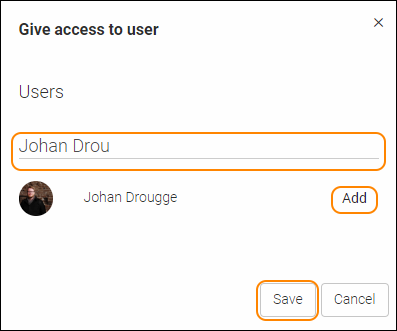
TIP! Once you have given access to named users, you also have to make sure that these users get the link to the material. Go back to the Share button and use Copy link to get the link and then send it off to your users.
0 Kommentarer