By choosing the option Share to My pages, you can organize your material into an appropriate folder. The most practical function on this potion though is really “Create a copy of [name of your material]”. This function enables you to create an exact copy of your material. The copy will not mirror any updates on the original.
Locate and click the button Share to open up all the options available to you. 
Choose the option Share to My pages. 
A dialogue window opens and now you can choose to move the material to another folder by clicking the icon of a small arrow next to the text “My pages”.
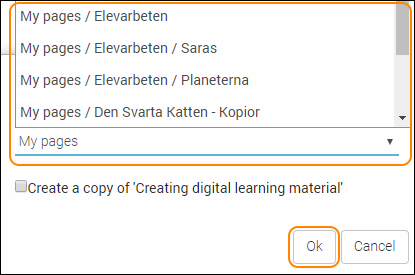
This will open up a scroll list with all your folders. Choose the folder you want to move your material to and finish by clicking the button OK.
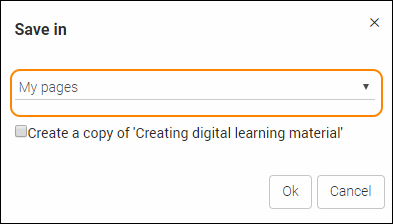
To make a copy of your material, tick the checkbox Create a copy of “[name of your material]”. A new line will appear underneath the name of your material. By clicking the line you can now enter a new name for the copy of your material.
Finish by clicking the button OK. This will close the dialogue window and take you back to edit mode for the original material.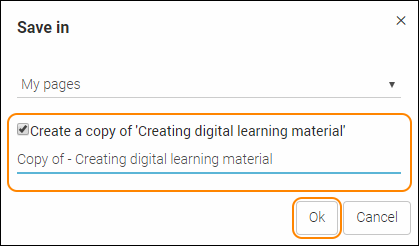
TIP! New copy of your material can be found in My pages.
0 Kommentarer