To create a blog post, go to the Blog section of your Learning Zone, locate and click the button Go to the blog.
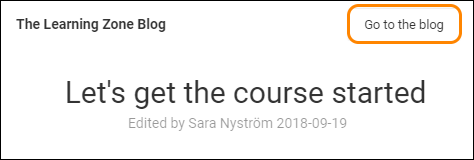
This opens the Learning Zone’s blog, that can look like this.
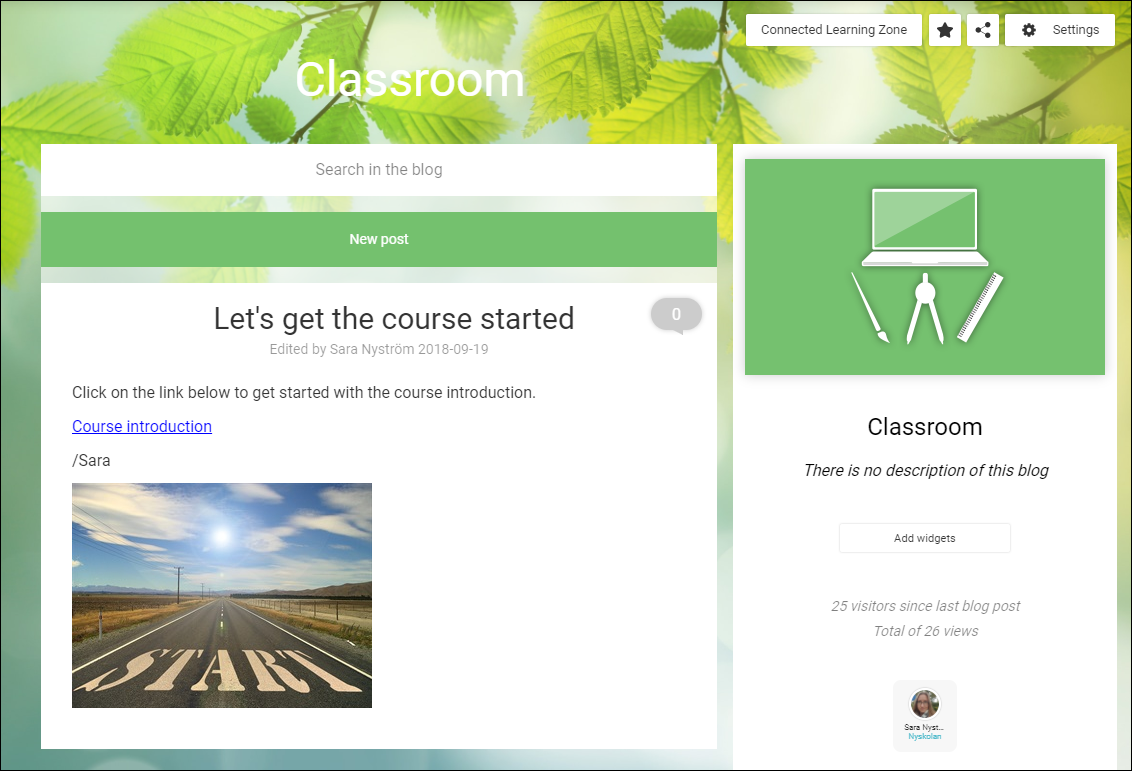
Locate and click on the button New post to create a new blog post.

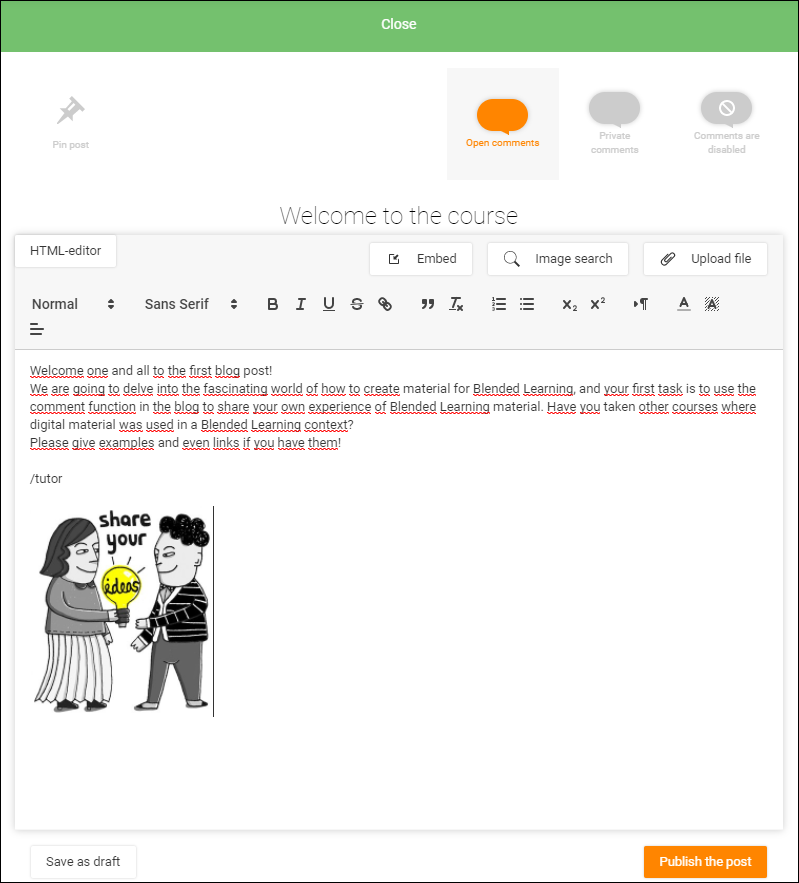
Once you have clicked the button New post, an empty post opens in edit mode.
Here's an example of what a post can look like.
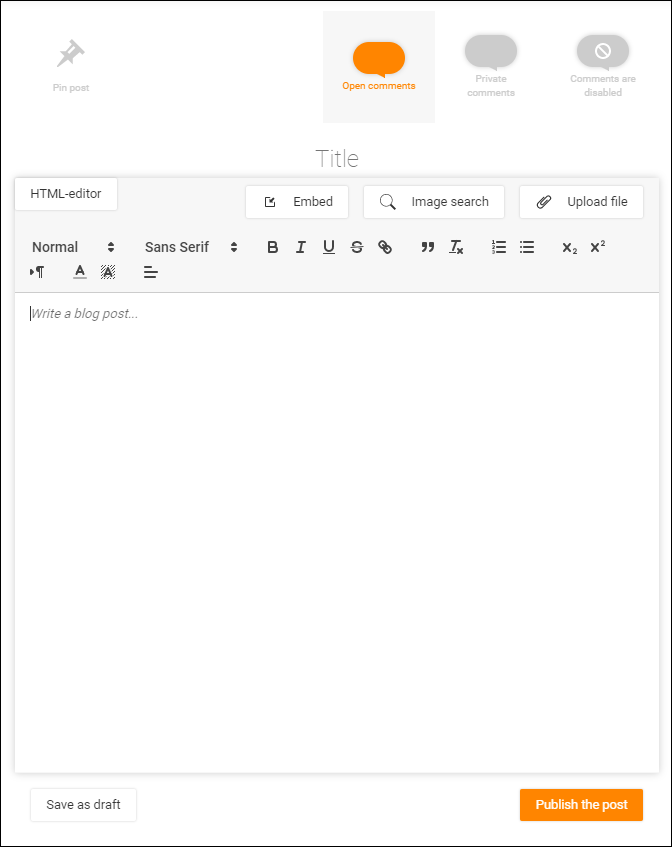
There are many options to choose from when creating a blog post. Among them are write text, upload files (or search images), create links and embed material.
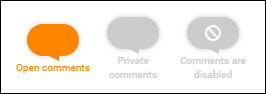
When you have finished creating your post, locate the buttons for comment settings (three icons that look like speech bubbles) and choose one of the following alternatives:
Open comments (all Learning Zone participants can read and comment on all comments to the post).
Private comments (only tutors and the comment author can read and/or comment on the comment).
Comments disabled Which means that no comments can be written at all on this particular blog post.
Tip: Since you can set the comment options differently for every blog post you create, it is a good idea to include some text instructions in every post about the comment options available for your participants.
Once you are done, this is how a finished (un-published) post can look.
Tip 1: If you don’t want to publish your post straight away, you can save it as a draft and publish it when the time is right for you.
To save your post as a draft, locate and click the button Save a draft.
Tip 2: Check out the button More options to find functions like setting a publishing date, adding a category for your post or publishing the same post in several of your blogs.
When you are done with your post and all the settings you want to add, scroll down to locate and click the button Publish the post to publish your post on the blog.

This is what a published post looks on the blog.
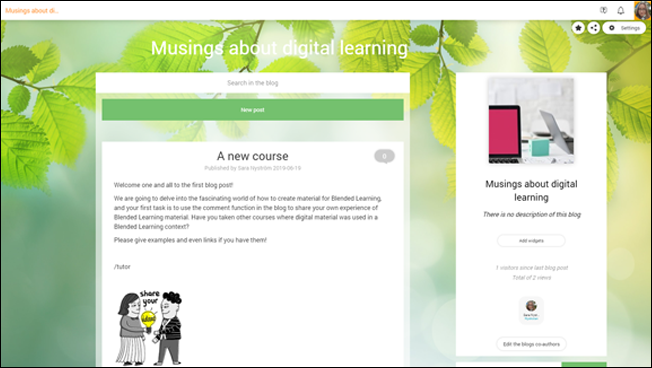
Want to see how the blog post looks to your participants?
Return to the Learning Zone by locating and clicking the button Connected Learning Zone.

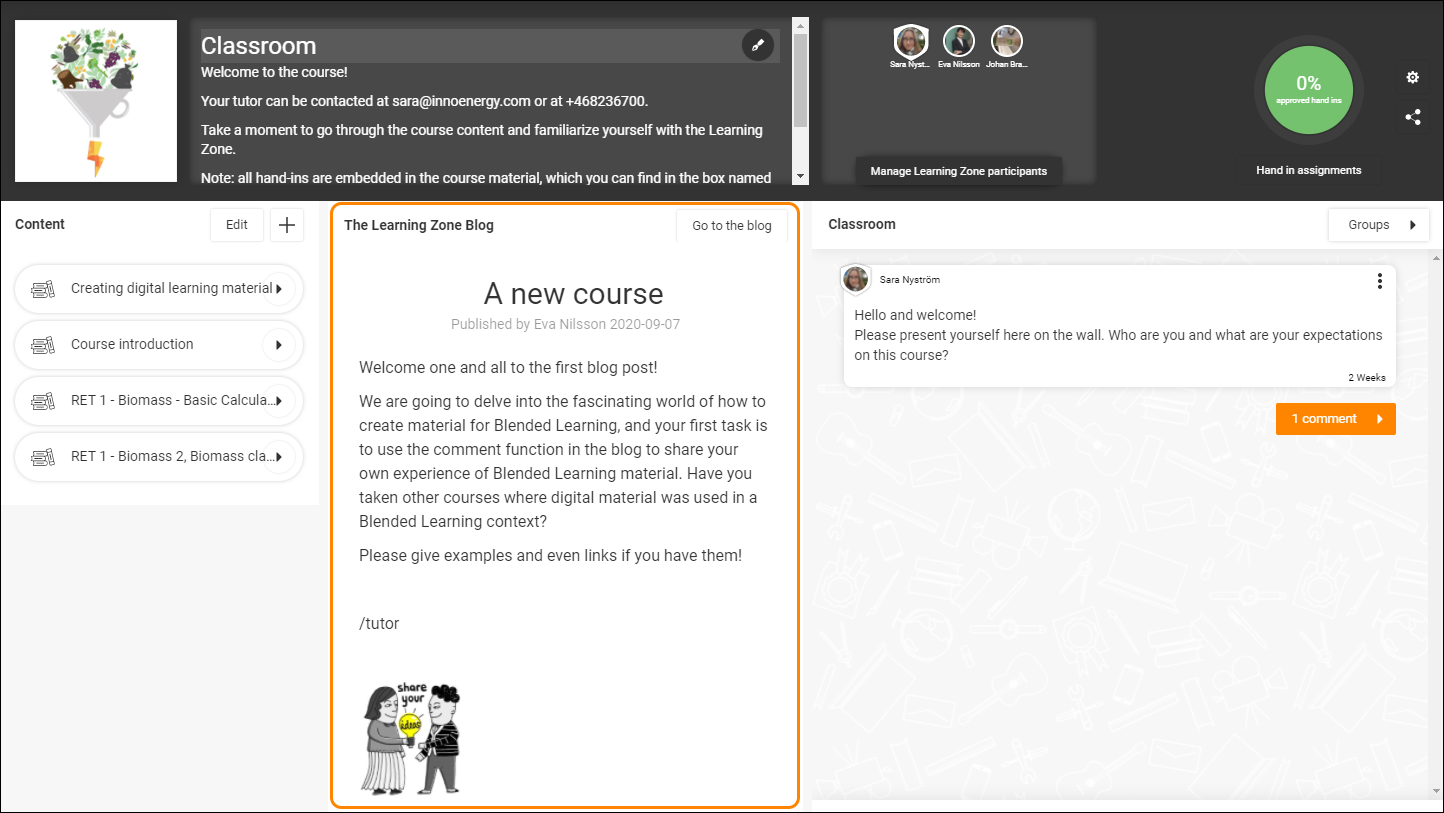
Your Learning Zone opens and the blog post is published.
0 Kommentarer