"This article is intended primarily for you who have a teacher/leader account or are designated as a tutor on a Learning Zone."
If you would like to have a private chat with one or several of your participants, you can create a group chat for that purpose. another way of using the group chats is to create group chats for participants where they can collaborate on a particular question or task.
Please note that only tutors (owners) of the Learning Zone can create and manage group chats - they don’t have to participate themselves in the group chat.
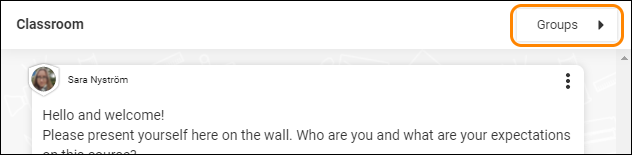
To create a new group chat, click on the button Groups on the Chat window of your Learning Zone.
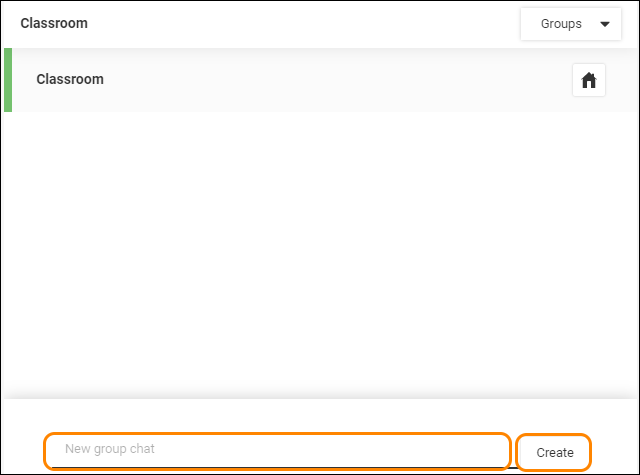
Locate and click on the text line that says New group chat. Name your group chat and click on the button Create.
A dialogue window opens and here you can manage the group chat, add and remove participants and download a participant list.
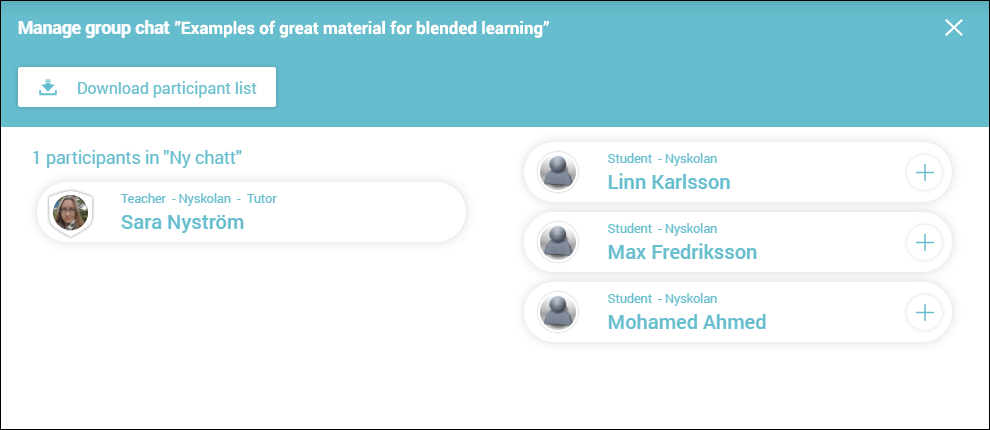
Add participants by locating and clicking Add participant - the button with the plus sign next to each participant name.

Close the dialogue window and the group chat is updated.
This is what a new group chat looks like.
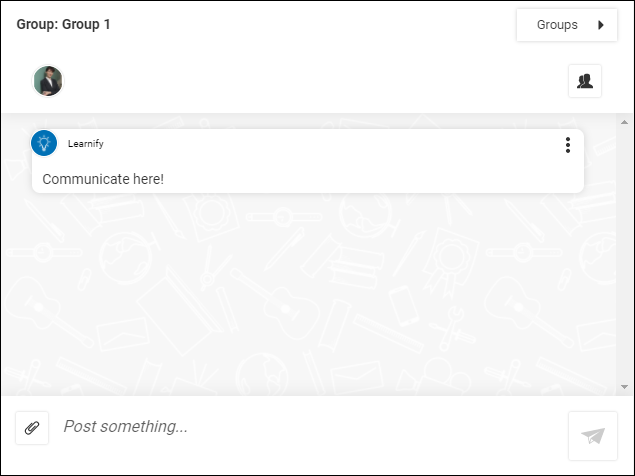
To go back to the other chats, locate and click on the button Groups and you’ll see a list of all your chats.
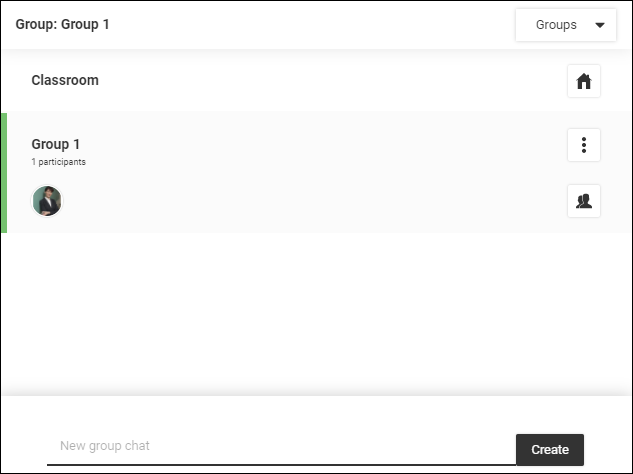
Here you can delete and edit the names of the group chats. To edit or delete a Group chat, locate and click Options - the button with three dots in a vertical line, next to the name of the Group chat. Then choose to edit or delete.

To go back to the main chat for all participants of the Learning Zone, locate and click Home - the button with an icon of a house on, next to the name of the Learning Zone.

Tip: Want to go back and manage the group chats participants? Locate and click the button with two avatars on it and the window for managing the group chat will open again.

0 Kommentarer