In the Majestic theme, it is possible to display a module in Text mode. This can be used to increase availability or to to easily search the material if you want to find specific parts.
The text mode automatically generates text from the content of the pages as well as from video subtitles. If you want to adjust what is displayed in the Text mode for a specific page, it is also possible to add a specific text used in mode for that page. However, this should only be done if necessary. In most cases, the automatically retrieved text is sufficient.
Module settings
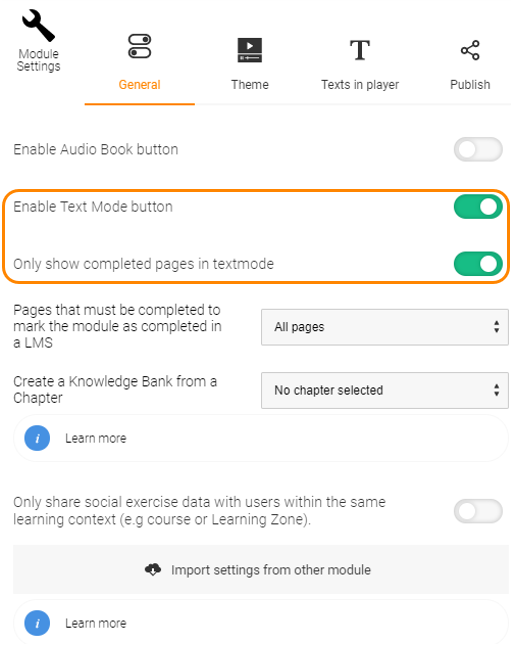
To be able to use Text mode, the button for it needs to be activated. This is done in Module Settings.
Here you also select whether the Text mode should display texts for all pages or only those that have already been marked as completed. This can be good if the Text mode is to be used as a reference but the participants have to complete the pages in interactive mode.
Page settings
On each page, you can choose whether the page should be marked as completed if a participant views it in Text mode. This setting is located in the Navigation tab. It is enabled by default for all pages. If the setting is disabled, the participants have to perform that page in the interactive mode in order for it to be marked as completed.
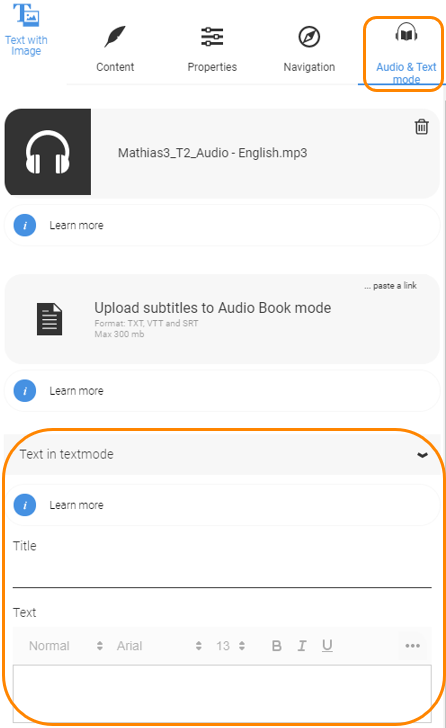
On each page, you can also enter your own text that is displayed in Text mode. Note that this should only be done if necessary. If your own text is entered, it will always be displayed in Text mode and it can be easy to miss updating both the regular and this content if the content changes. In most cases, the automatically retrieved text is sufficient. If you need to enter your own text, this is done in the Sound & Text mode tab under Text in text mode.
When the Text Mode button is activated, this is indicated by an icon next to the menu button in the lower left corner. When the button is clicked, the Text mode is started.
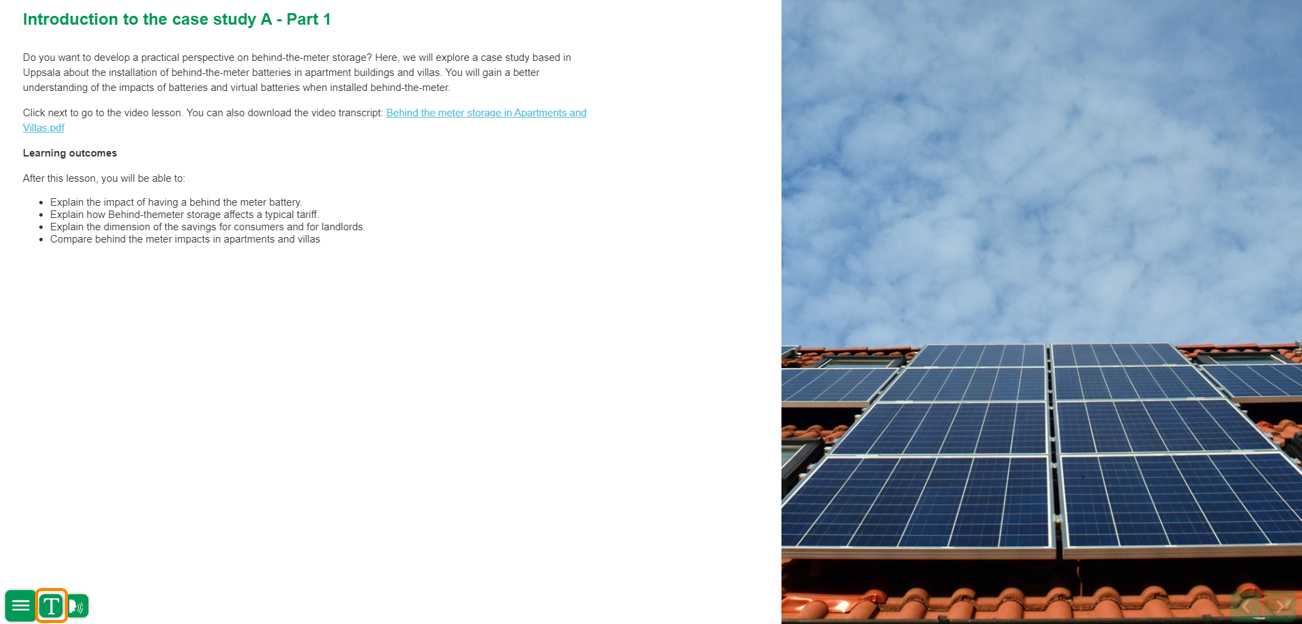
This is what it looks like in the player
To navigate in Text mode, you can click in the area to the left and right of the text. A click to the left of the text equals page up, and a click to the right of the text equals page down.
To return to interactive mode, click on the crossed icon in the lower left corner.
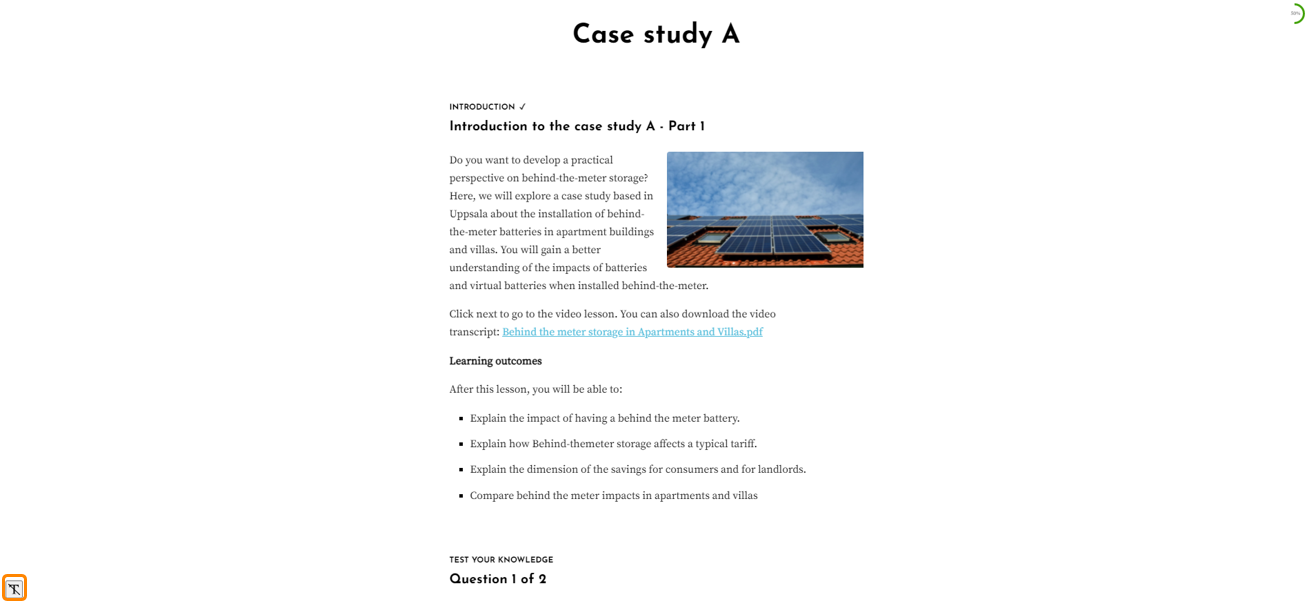
The check mark means that the page is marked as completed and the icon in the lower left corner is used to return to the interactive mode.
0 Kommentarer