From the release 2021-06-03, it is possible to set a variety of ways to display content.
On each page, in the Properties tab you can and set how that page should be displayed
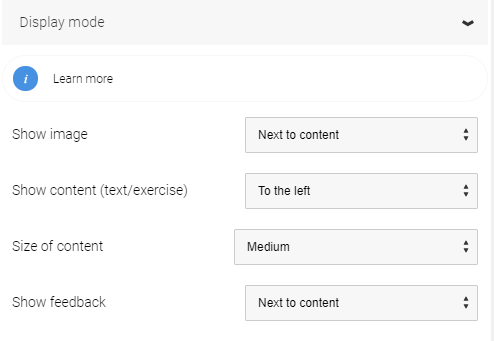
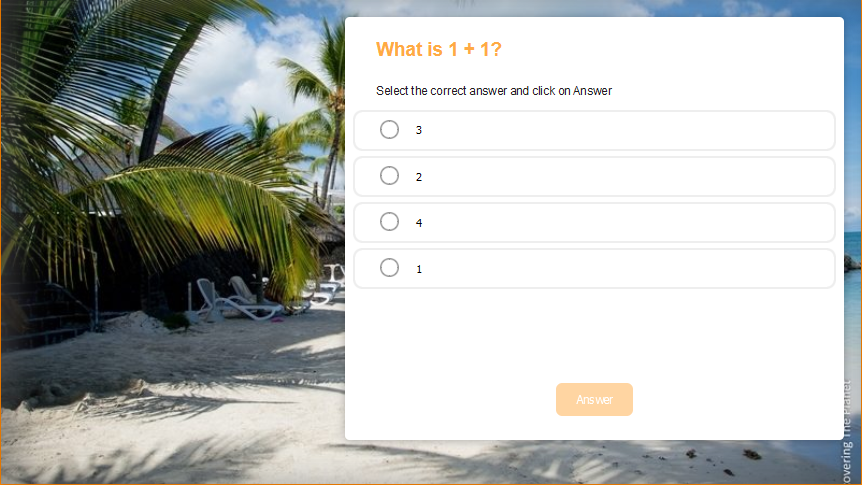
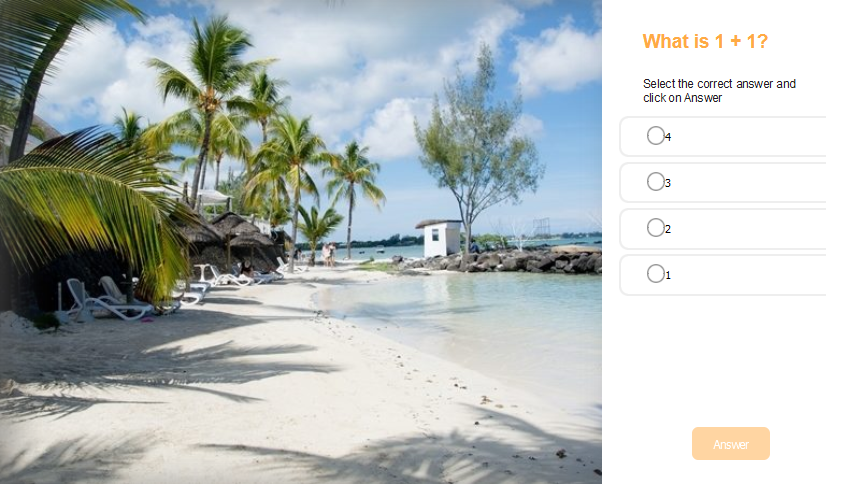
Show image has three choices. Either the image is displayed next to the content, as a background or you can choose not to display any image at all.
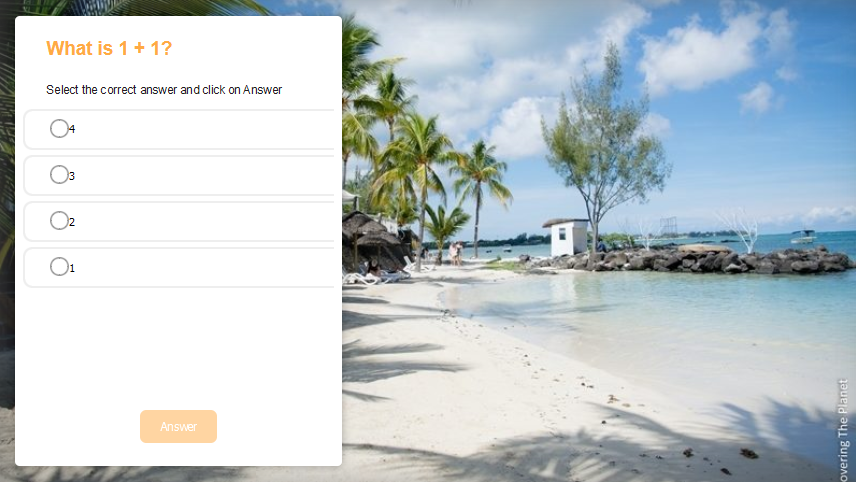
View content (text / exercise). Here you set whether the content is to be placed To the left, To the right or Centered. Note that if no image is displayed, this setting has no function and if Show Image is set to Next to content, the Centered setting has no function.
Size of Content. Setting for how wide the content field should be. Possible choices are Narrow, Medium, Wide and Adapt. Adapt changes the content width to fit the content. Note that Adapt only has a function if Show Image is As background.
Show feedback. This setting is used to define where the feedback should be placed for templates that have feedback.
Below content, feedback is displayed either below the content or in some cases as an expanded heading.
Next to content shows feedback in the same way as before, ie in a panel next to the content.
Above content shows feedback in a pop-up box that is placed on top of the content.
Here is a video that explains how display modes can be used.
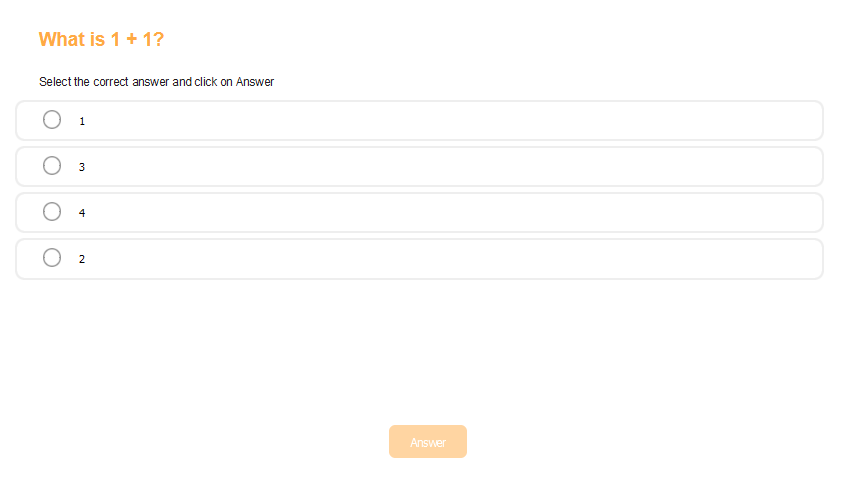
And here are some examples of how to combine the settings to display a page in different ways.
0 Kommentarer