From the release 2021-06-03, it is possible to set if a module shall have the choice to be played as an Audio Book. For modules using the new Majestic theme, it is also possible to add audio on each page that can be played for those who would rather hear a text than read it. We call this support audio.
Audio Book mode
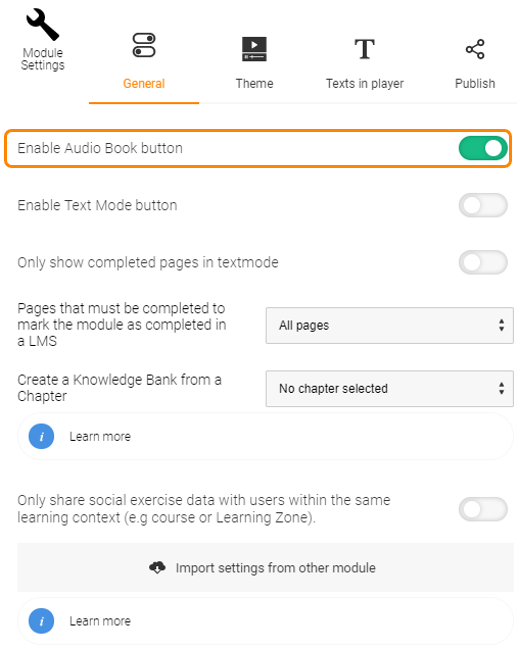
Activation of Audio Book button is performed in Module settings.
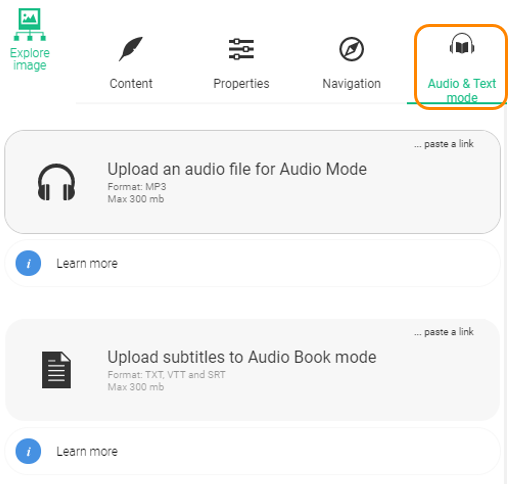
In order for the Audio book mode to play audio, an audio file needs to be uploaded to the pages of the module. This is done in the Audio & Text mode tab. In Audio book mode, you can also add subtitles that are displayed when the audio is played.
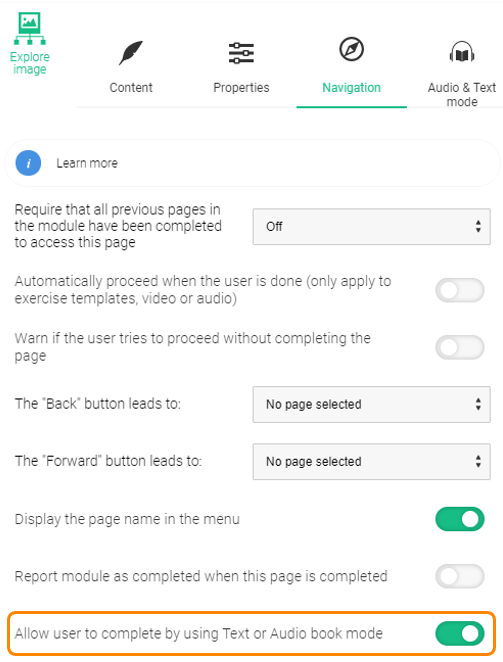
On each page, you can choose whether the page should be marked as completed if a participant listens to it in Audio Book mode. This setting is located in the Navigation tab. It is enabled by default for all pages. If the setting is disabled, the participants have to perform that page in the interactive mode in order for it to be marked as completed.
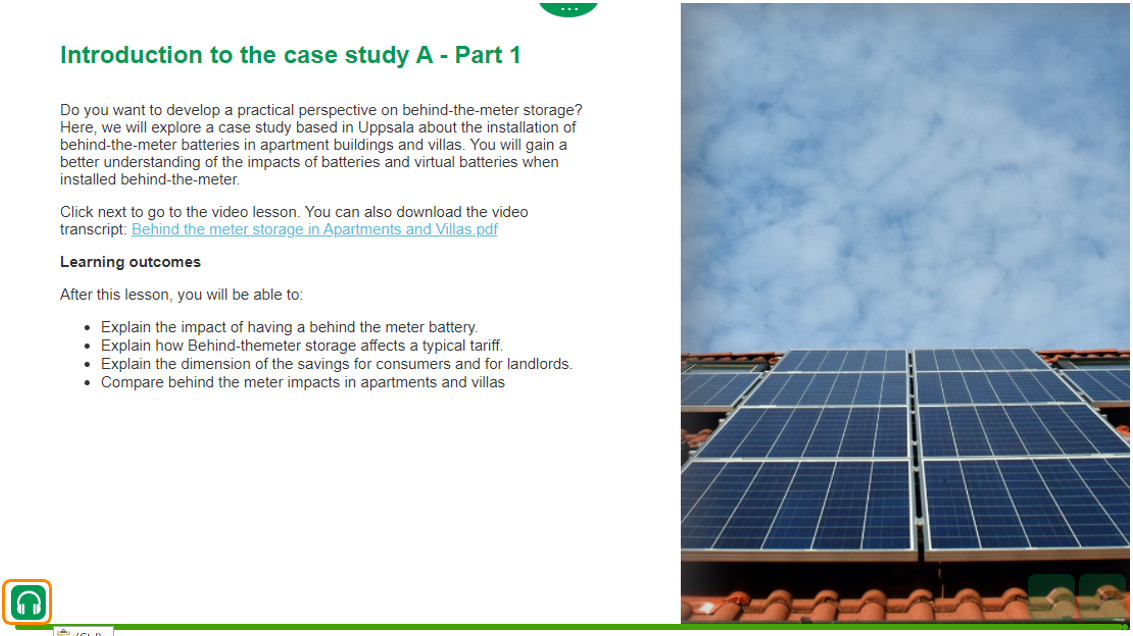
In existing material (using the default theme), the button to start the Audio book mode is displayed in the lower left corner.
and in modules using Majestic theme it is shown next to the menu button in the lower left corner.
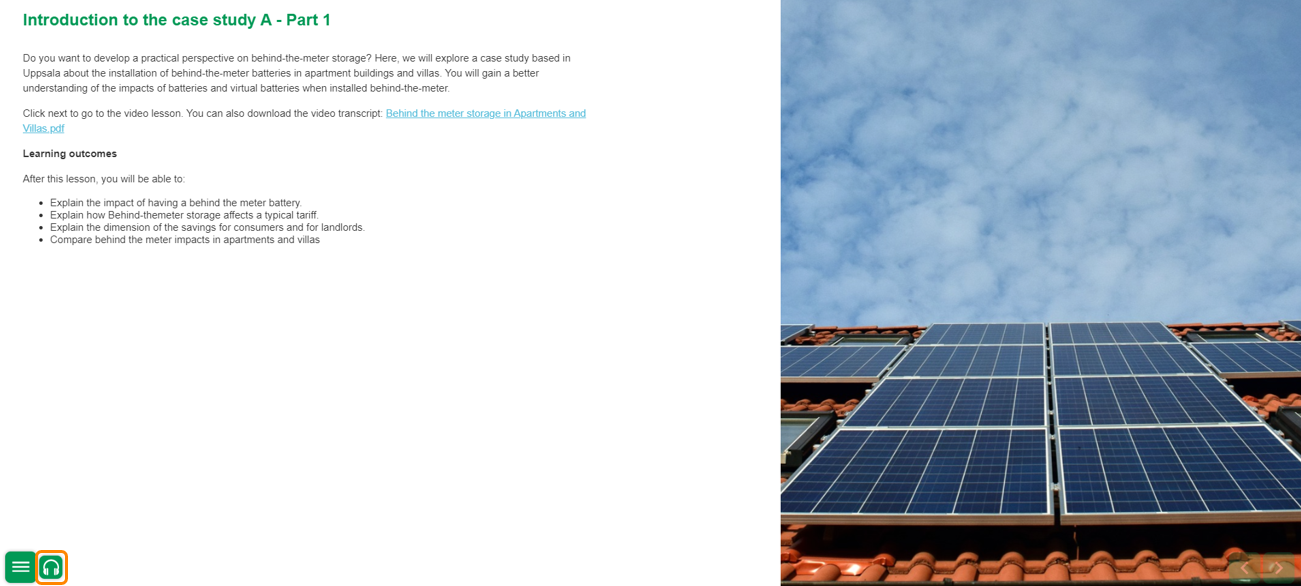
In Audio book mode, the text information on the page is replaced with the image from the page and the connected audio is played.
In Audio book mode, you automatically move on to the next page, as in an Audio book. If a page does not contain connected audio, the Audio book is stopped. If you want, you can upload subtitles to the audiobook.
Support audio
In the Majestic theme, it is possible to add an audio file to each page that can be played as support for those who would rather hear a text than read it. The page works as normal, the only difference is that it is possible to play a supporting audio file while viewing the page. Note that this cannot be combined with the Audio book mode.
An audio file can be uploaded to a page in the Audio and Text Mode tab. Note that no subtitles are displayed for Support Audio.
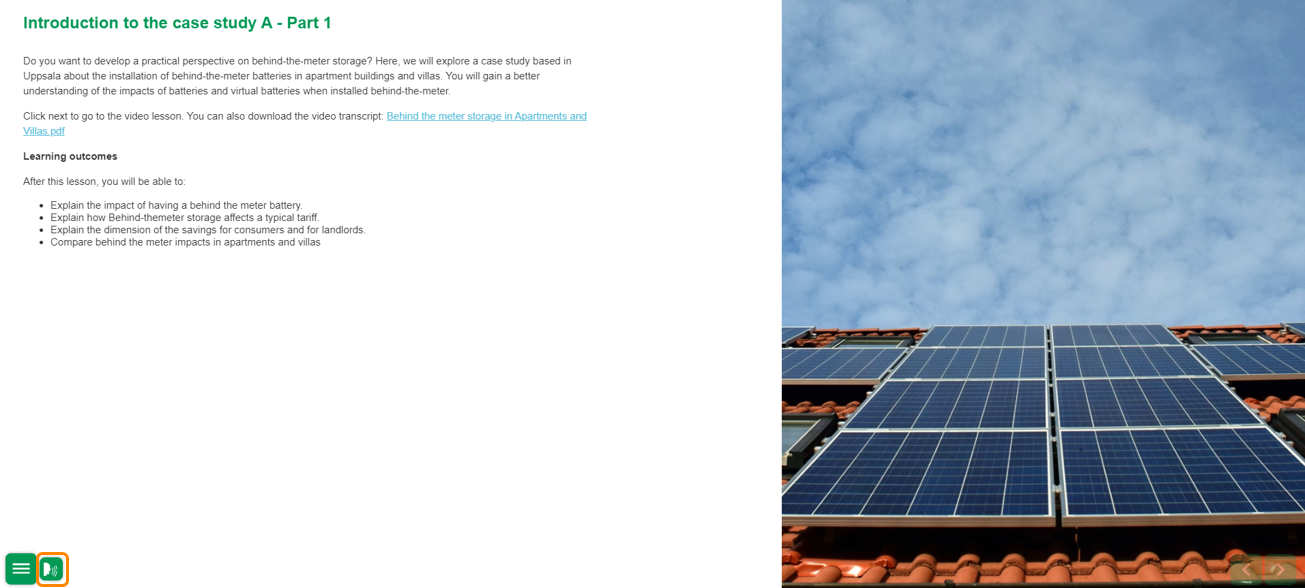
If a page has a connected audio file, this is indicated by an icon next to the menu button in the lower left corner. Clicking on the icon starts the audio playback.
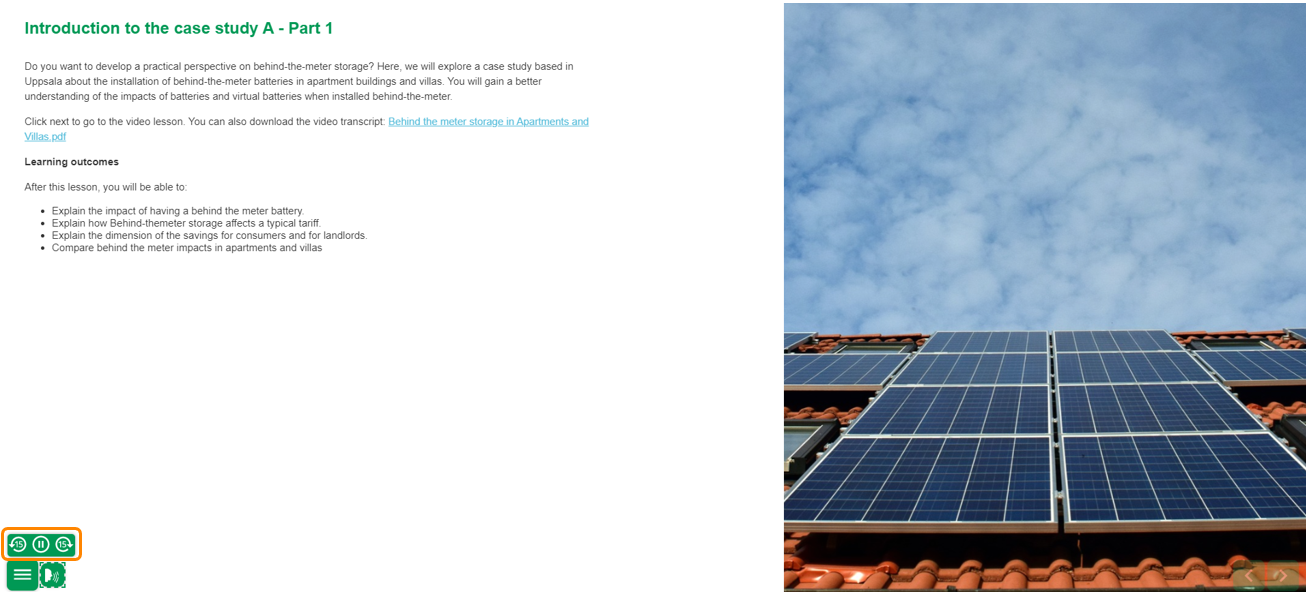
When the audio is played, controls are displayed to pause the sound and to skip 15 seconds forward or backward.
0 Kommentarer