Once you have created a plan and filled in the fields described in the previous guide, it is time to add material. When you click on the + sign at the bottom, the library opens where you can choose which modules are to be included in the plan. The modules can be located in My pages, a Workspace or a Library.
How to add material.
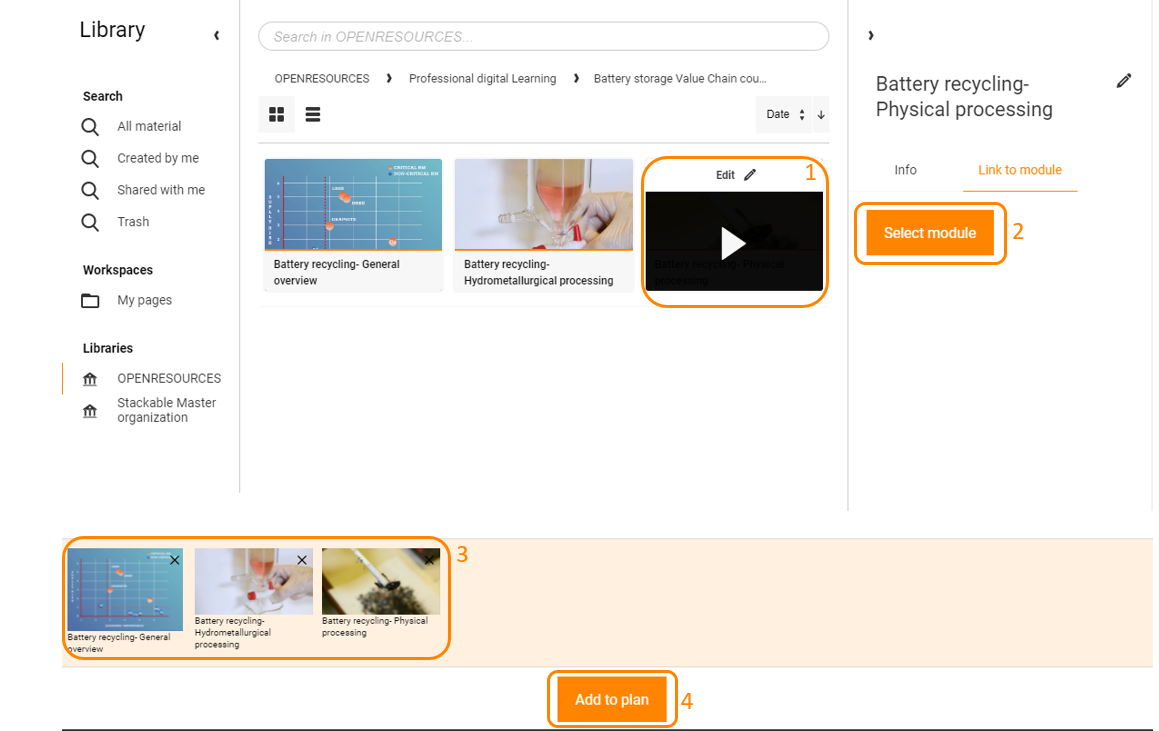
- Find and select a module you want to add to the plan.
- Click on Select module. If you want to add more modules, repat step 1 and 2.
- The selected modules will be shown at the bottom of the page (3) and it is possible to delete modules from the selection if you want to.
- Once the wanted modules have been selected, click Add to plan.
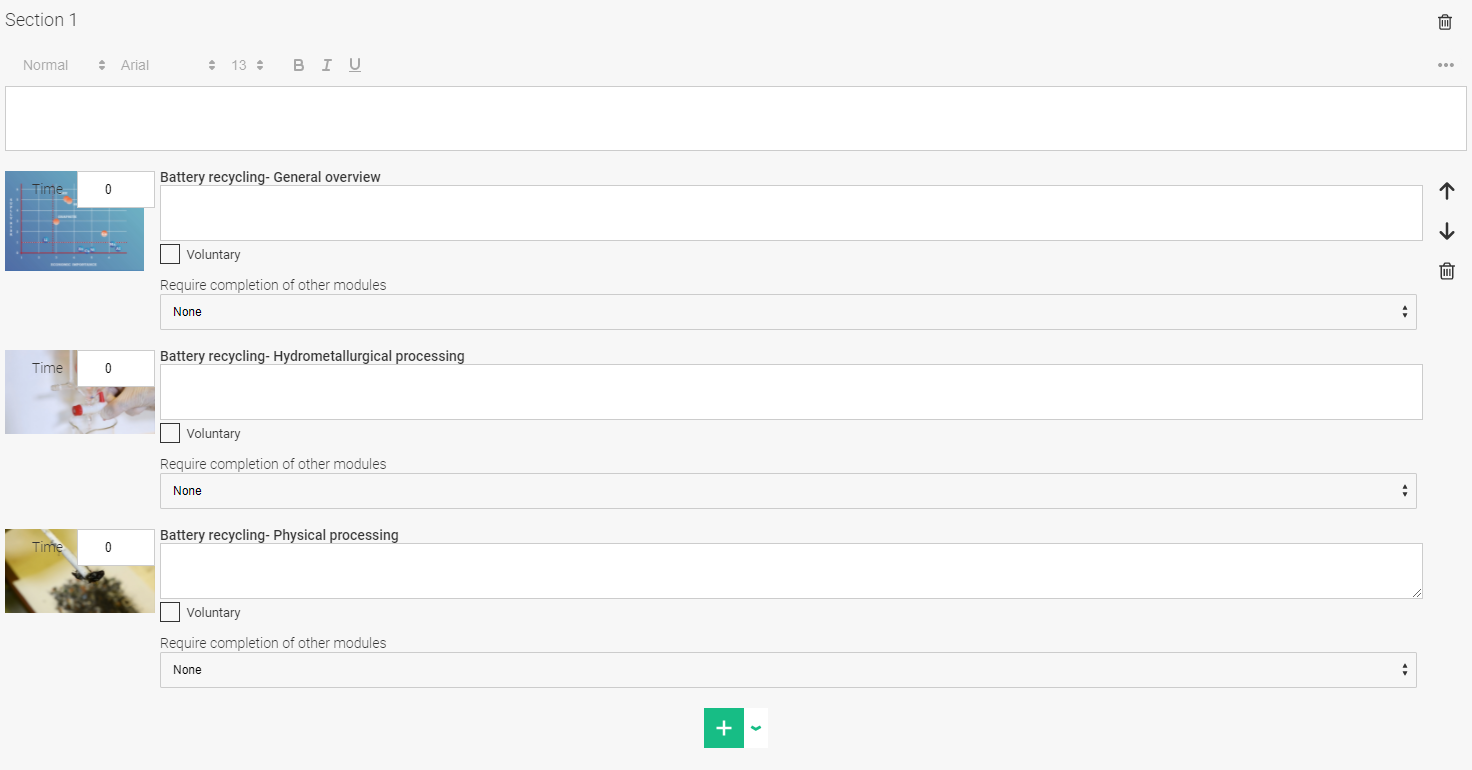
The material will then be shown in the plan and it is possible to sort them in any order or even delete modules if you need to.
Where it default says Time 0 you can add the estimated time it takes to complete that module. This value is used in the calculation of total and remaining time shown in the Intro Text.
If Voluntary is checked. this means that it is not compulsory to complete the module in order for the plan to be marked as completed. In this case the estimated time is not included in the calculation of total and remaining time shown in the Intro Text.
In Require completion of other modules you can select if none, the previous module or all previous modules has to be completed before starting this this module. Useful if you want to control the order users perform the different modules
It is also possible to add a text that will be shown next to the module. This can for instance be if it is an E-learning, Lecture or Knowledge test.
If several sections is used, it is a good idea to edit the text field for each section with a a title and a description for that section
Once these steps are completed, the plan is finalized and ready.
0 Kommentarer