Workspaces is new opportunity to collaborate with the production of modules. You can create a workspace and give a number of people co-author permission. Then you no longer need to make people co-authors of each module. Simply put a module in that workspace. Then they are able to edit the module.
The modules you have created previously can be found in the My Pages workspace or Shared with me.
So you do not have to do anything if you do not want to, but if you have a lot of modules that are shared with you, it can be a good idea to create workspaces to get a simpler structure.
Workspaces are created in the Create New dialog described earlier
A module can only be in one workspace and is most easily moved by dragging it to the workspace you want to move it to. When the module is moved, the rights for it changes. This means that those who have access to the new workspace also gain access to the module and those who only have access to the old workspace lose their access to the module.
Links to the module are not affected by moving it to another workspace. If the module is in a Learning Zone or is used in an LMS with an LTI link, it will not be affected by moving it to another workspace. That access is controlled by the access setting of the module in Author or Presenter.
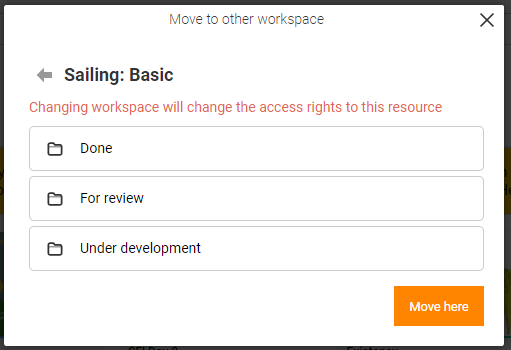
It is also possible to move modules to workspaces by selecting Move resource on the right hand side if the module is selected.
Add users to a workspace
Click on the workspace you want to give users access to, then click on Share.
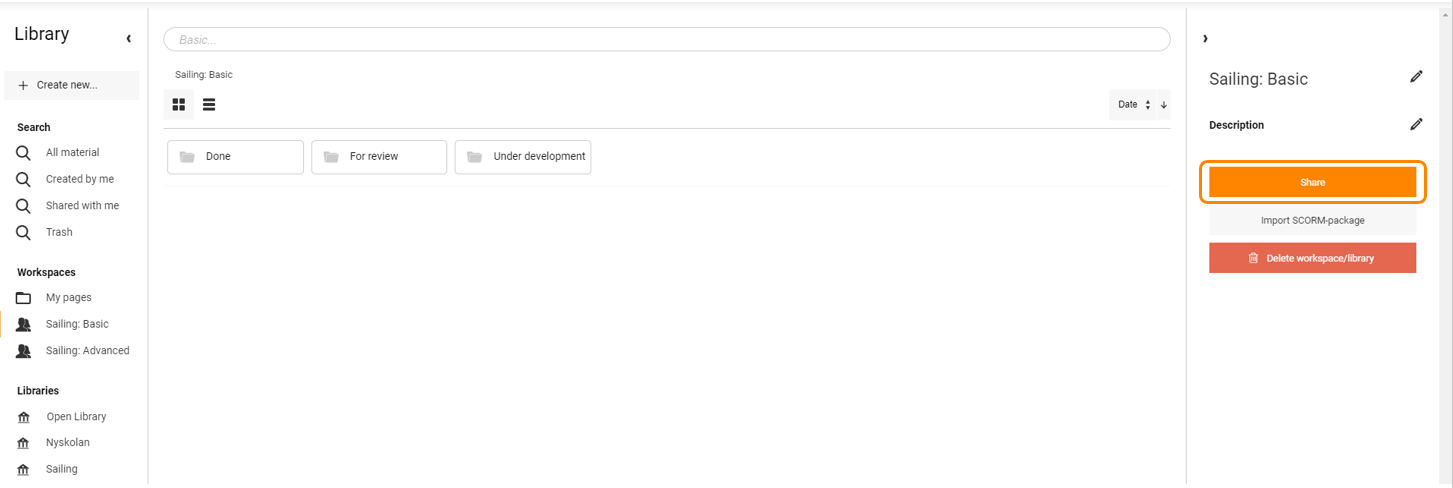
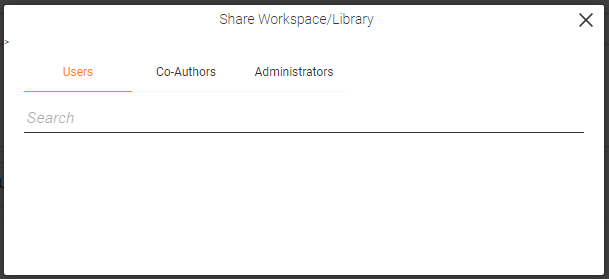
A new dialogue is opened where you first select what type of access you want to give.
- Users are primarily intended for reviewers. Those who are users can view the material but not edit it.
- Co-authors are the ones you collaborate with to produce modules. They automatically become co-authors of all modules available in the workspace.
- Administrators also have the right to manage the workspace. Ie. add/remove users. They can also delete the workspace.
Then you search for the people you want to add and give them access to the workspace.
Remove people from the workspace
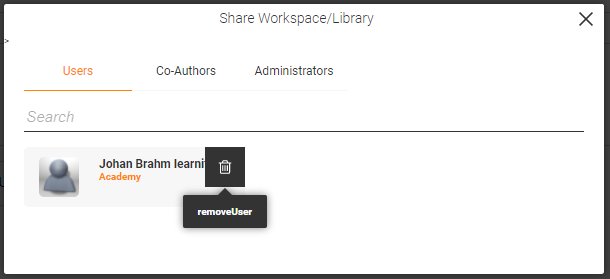
In the Share dialogue, hover over the name of the person you want to delete. Then click on the symbol to remove the person from the workspace.
Change title and description of a workspace
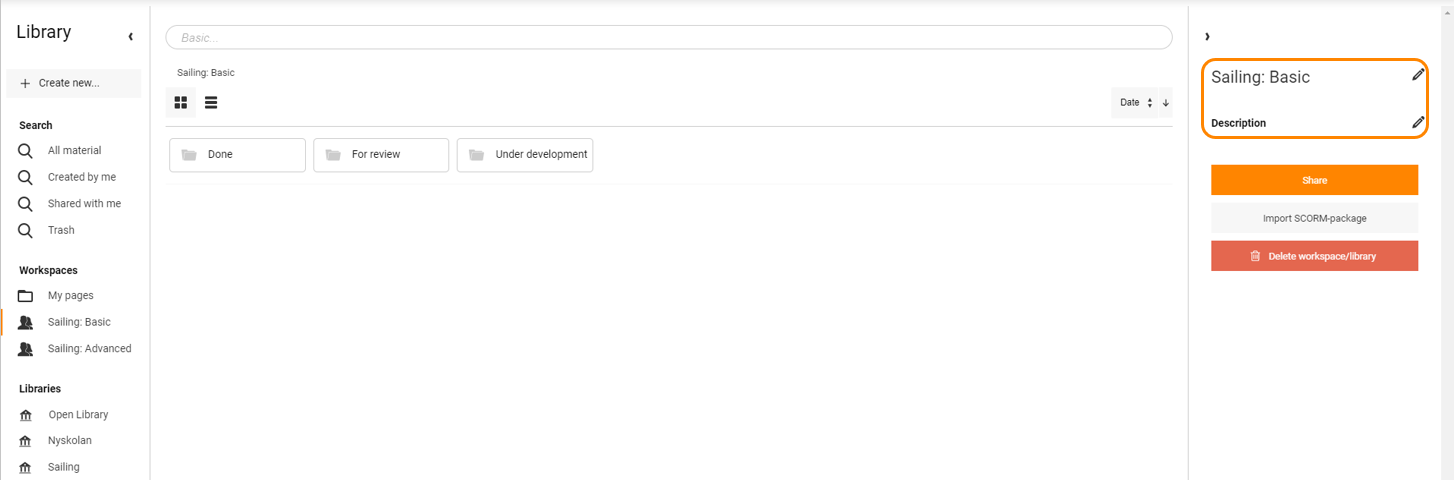
The title and description of the workspace can be changed by clicking on the respective "pen".
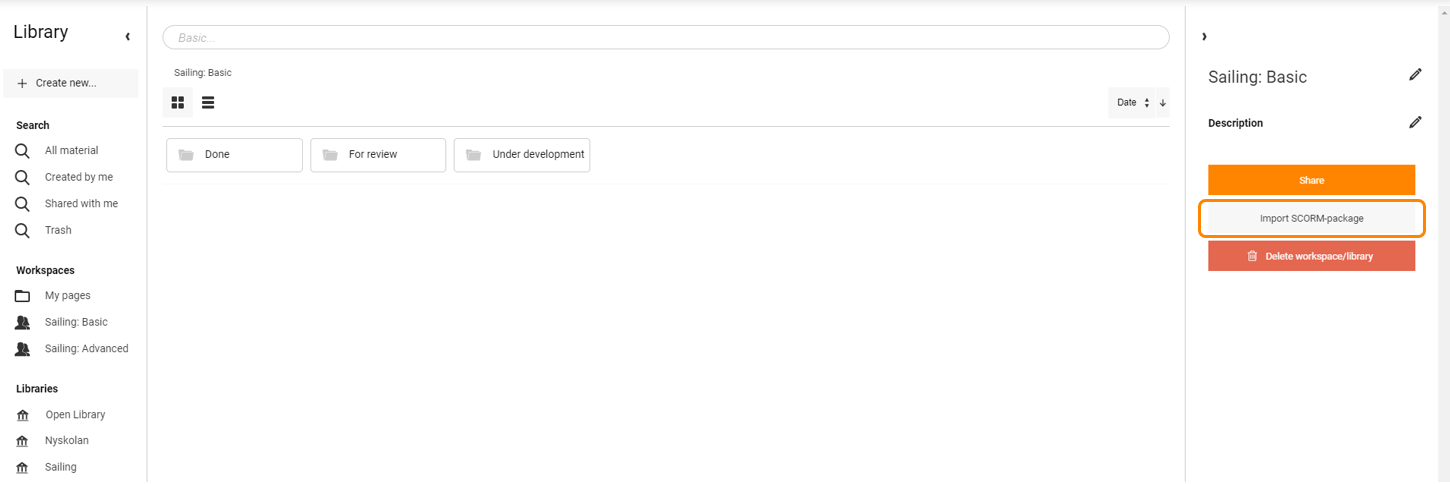
Import SCORM package
If you have modules from an external supplier or modules exported from another repository it is possible to import them to a workspace so it can be used in trainings.
Note that imported SCORM packages from external suppliers cannot be edited in the repository. They can only be viewed in the player.
Delete a workspace
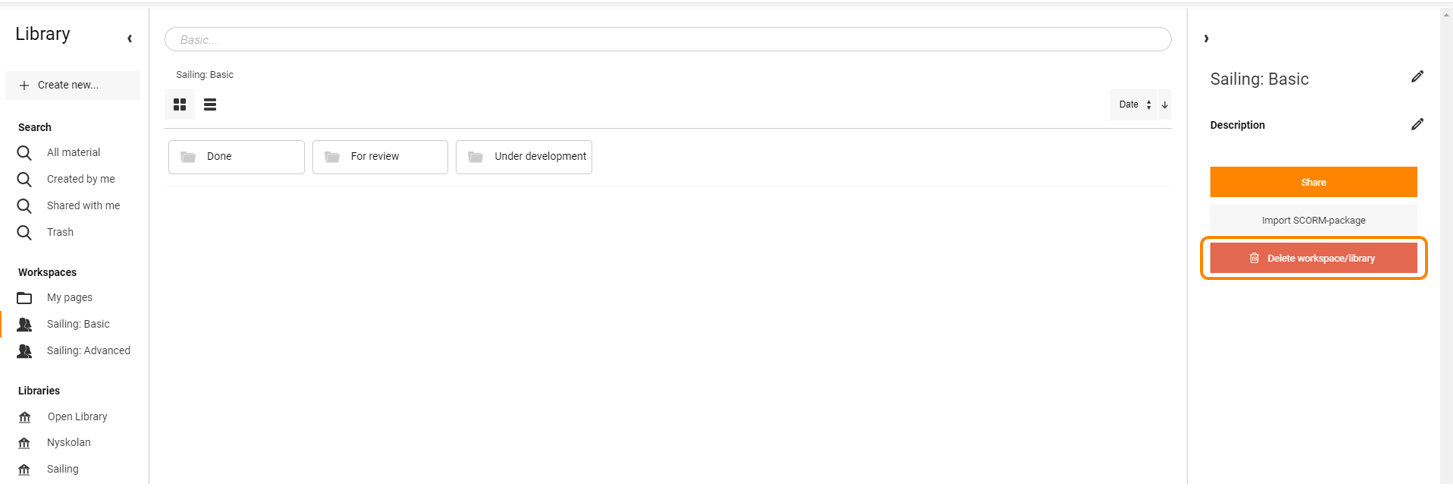
To be able to delete a workspace first all modules must be either moved to another workspace or deleted.
Then click on Delete workspace/library to delete it
0 Kommentarer