Library is a replacement for My pages, the Organisation library and Open resources.
Starting from the welcome page, click on the top left menu that looks like a dotted square.
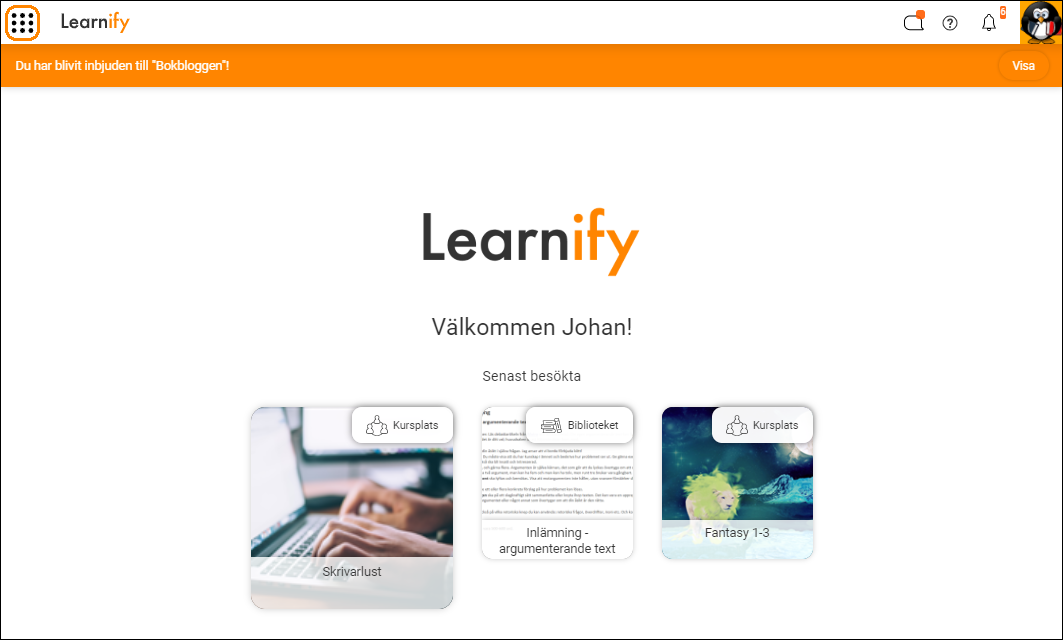
Choose Library.

Once you select Library, you will come to this page.
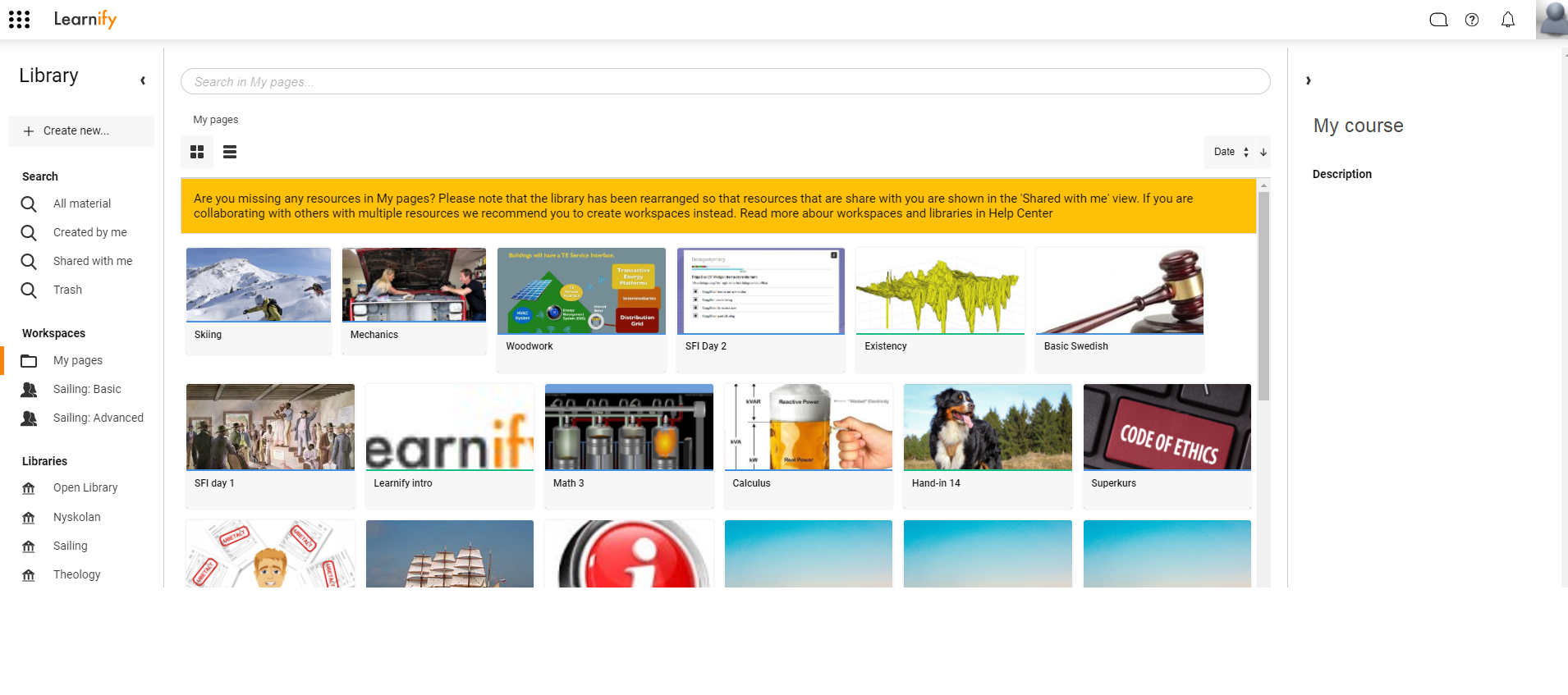
Library items
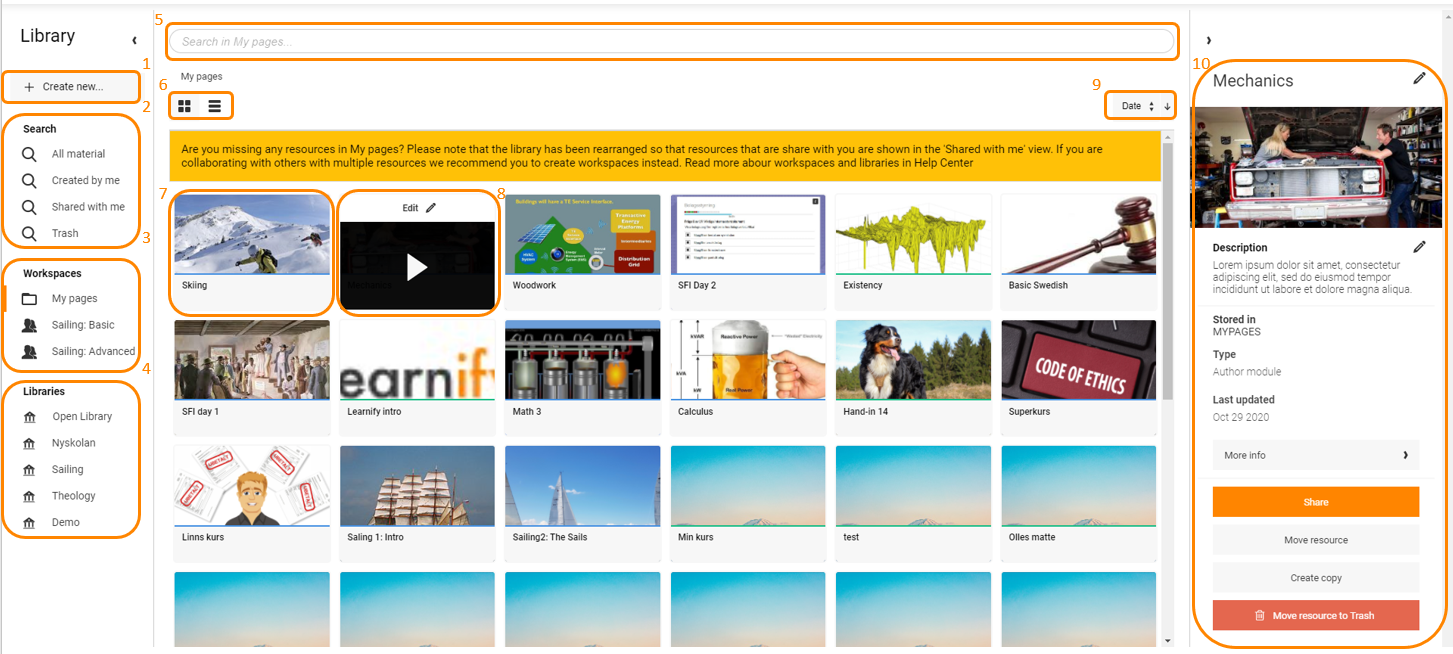
- Create new. By clicking Create New, you can create new material with either Author or Presenter. You can also create new folders, workspaces and libraries.
- Search. Here you can choose which material to display.
- All material shows all material you have access to.
- Created by me shows the material you are the original author of.
- Shared with me shows material others created but made you co-author on.
- Trash shows and allows you to recreate deleted material.
- Workspaces. Shows a list of the Workspaces you have available.
- Library. Shows a list of the Libraries you have available.
- Search box. Here you can search for material. The results listed depend on the option selected under Search (2).
- Display mode. Allows you to choose how the material should be listed. Either Block view or Detailed view.
- If you place the mouse on a material, the description and last edit date are displayed.
- Clicking on a material gives you the opportunity to open it for viewing or editing. Information about the material is also displayed in the space to the right (10).
- Sorting. Allows you to choose whether the material should be listed in alphabetical order or last edited and whether the order should be ascending or descending.
- The space on the right shows information about the selected material. It is also possible to change the properties of the material here.
Please note that in Block view there is a blue or green line in each material. Green line means that the material is a Presenter module and blue that it is an Author module
0 Kommentarer