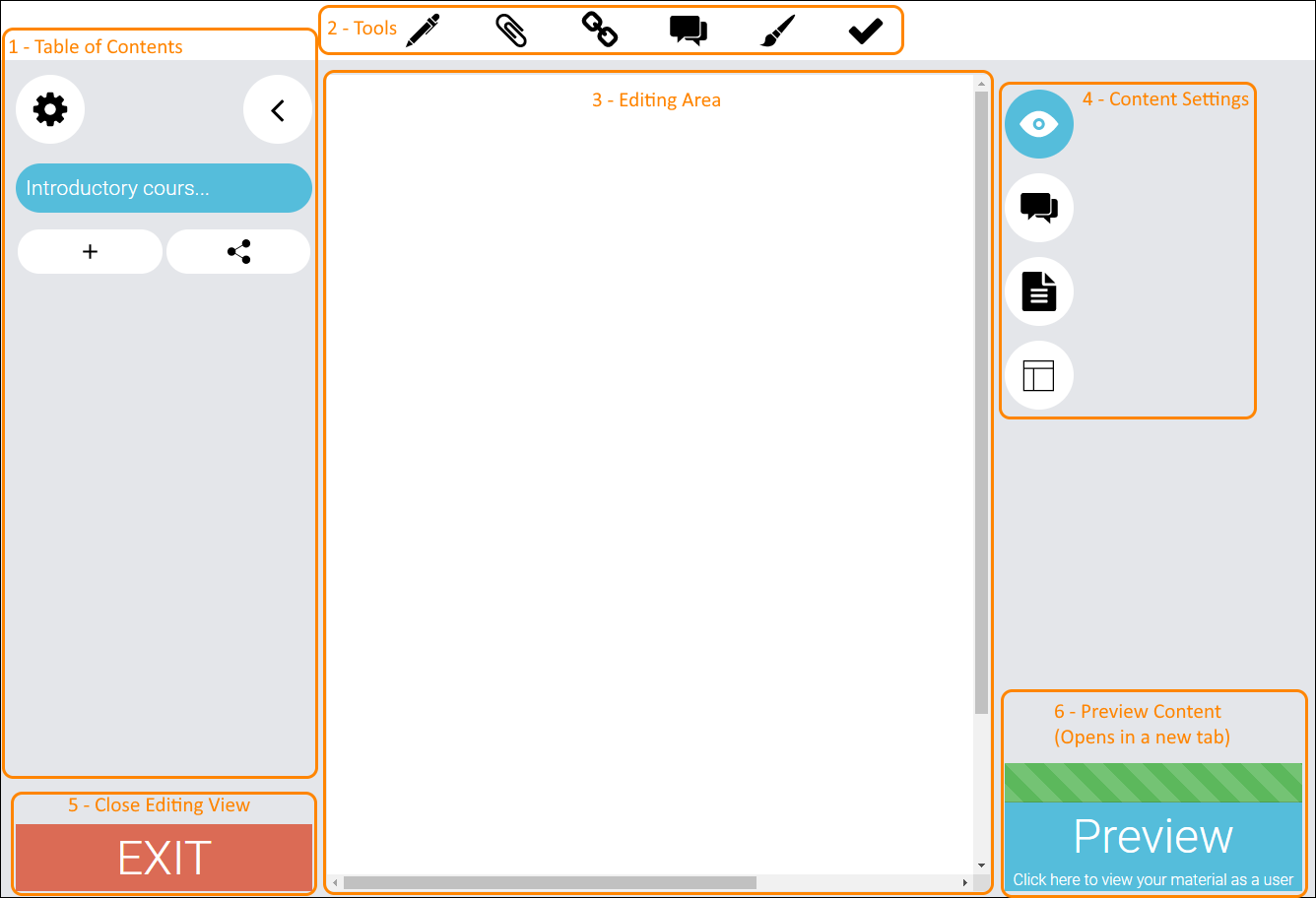
- Table of Contents
Here you can see all the pages in your material, add and remove pages and reuse material från the Library.
If you click the gear icon you can change the name of the pages, reorder them and activate the scenario functionality. - The top menu contains all the tools you can use to edit your pages.
- The editing area is your canvas. All your content can be viewed here.
- The column of buttons on the right hand side of the editing area is, from top to bottom:
Adjust viewmode – Change between editing for desktop, tablet and mobile.
Comments – Allow other content creators comment on your material. Several pairs of eyes can see more than one.
Page information – Add metadata for your material. This can be very useful for when you publish the material to the Library.
Show templates – Use templates to create a unified look for all your pages. Here you can find all your templates, which you can create whenever you want. - Stop editing and return to the Library. (All changes are saved automatically.)
- Preview – open the material in a new tab. Here you can see what the material will look like for other users.
0 Kommentarer