To easily copy a link to your module click on the "Share" button at the top-right corner of the Author interface. Then click on the "Copy link" button.
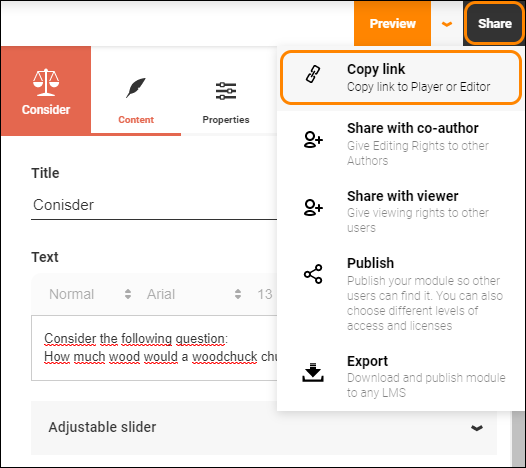
This will open a new dialogue window with several options.
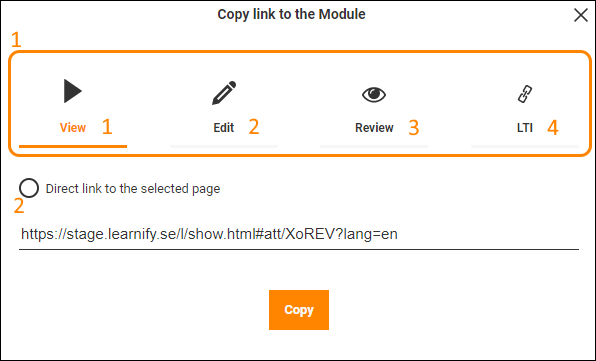
- Depending on your needs there are several types of links available.
- Copying a link to the Player will show anyone who clicks it the version your participants will see when they go through your module. This can be useful if you want someone to just take a look at your material, read through and see if it's correct or if they have any useful suggestions to improve it.
- Copying a link to Author will take anyone who clicks it, if they have been given editing rights as a co-author, to the Author tool. Here they can make changes or add things directly. Only give this type of link to someone you can trust.
- Copying a Review link will take the viewer to a modified Player where they can Review and comment on the module as a whole or on individual pages using a separate comment system. No changes can be made directly to the content of the module in this view, it is strictly for reviewing purposes.
- Copying an LTI-link enables you to use the module within an LMS that supports LTI content. It is not supported by regular browsers and should therefore only be used if you know you're using an LMS with LTI compatibility.
- Do you want everyone who clicks the link to start from the beginning of the module or do you want to send them to a specific page? This can be useful if you just need someone to fact check something specific or perhaps skip past a section that you're still working on.
Clicking "Copy" will copy the link to your clipboard and you can send it to whomever you want via the medium of your choice.
0 Kommentarer