For a Learning Zone group chat to appear on the general overview of the Chat section of Learnify, it must already be created in a Learning Zone that you’re in.
Please note that only tutors (owners) of the Learning Zone can create and manage group chats - they don’t have to participate themselves in the group chat.
Learning Zone group chats are located under the green tab From the Learning Zones.
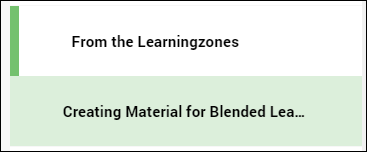
Unread messages will shows an orange envelope next to them.

Click the Learning Zone chat that you want to chat with.
A chat screen will then appear.
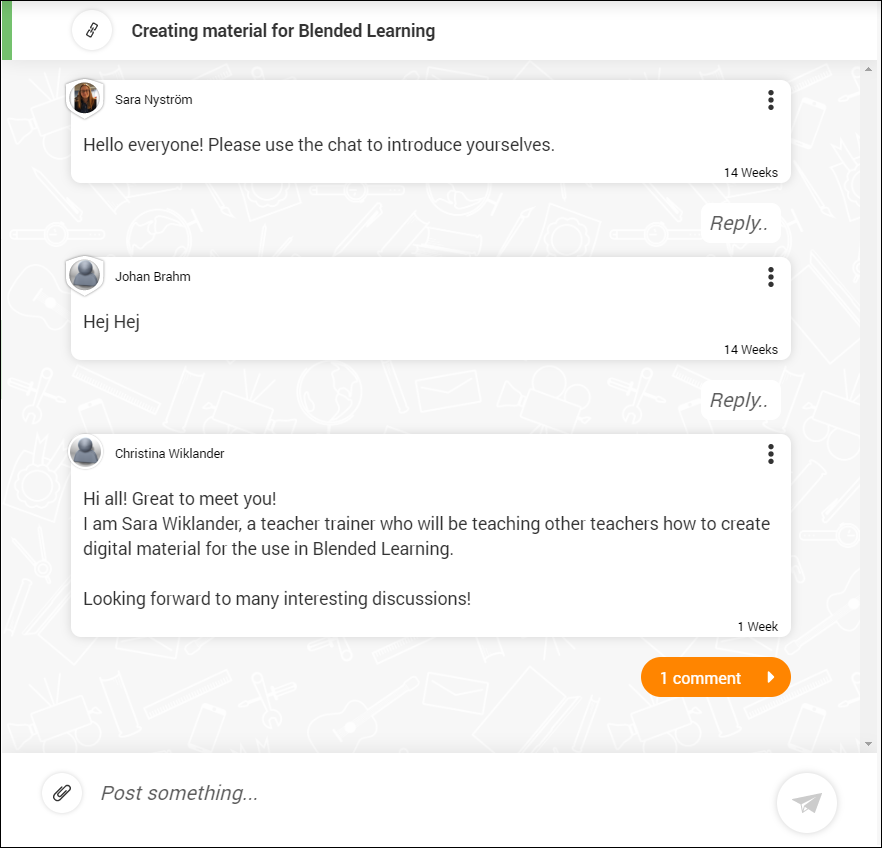
To go directly to the Learning Zone of the chat you’re in, click the link icon next to the name of the Learning Zone at the top of the chat screen.

If you are a tutor (owner) of the Learning Zone, you click where it says Groups.
You will then see a list of group chats that are existing within that Learning Zone.
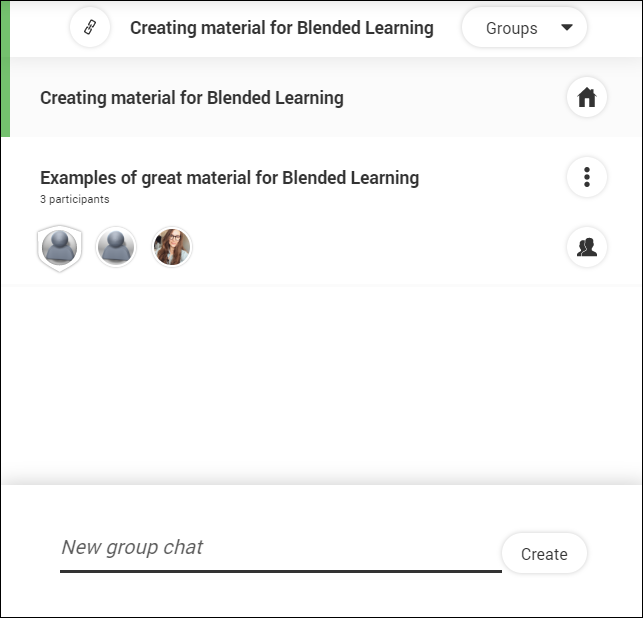
Click the name of the group to start chatting with them, or to manage who is in the group chat, click the two person icon of a specific chat.

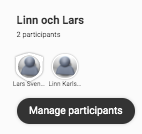
Then click manage participants.
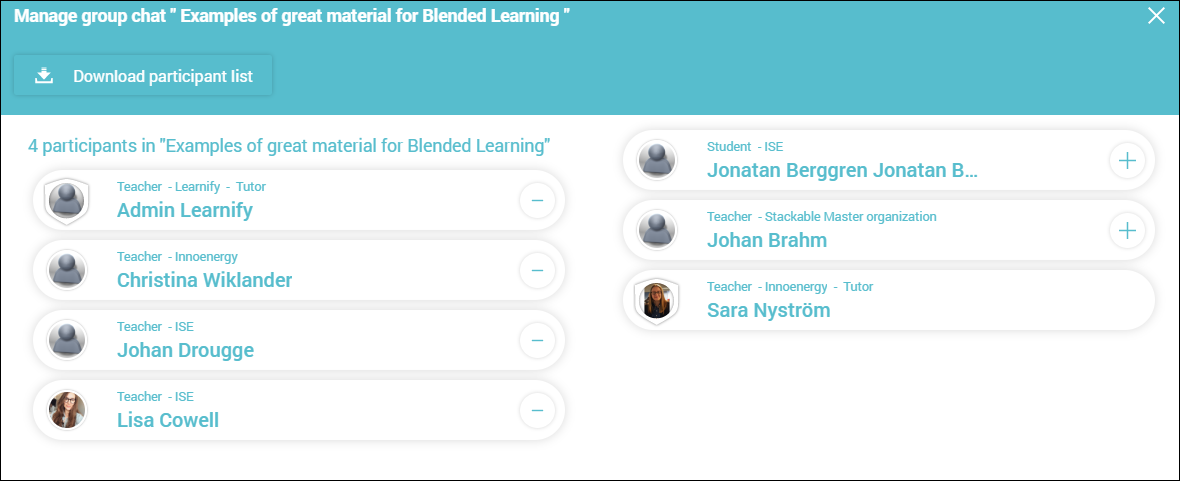
You can then select the users you want to add or remove from the group in the following window.
To create a new group chat, click X and you will return to the Groups screen within Chat.
At the bottom of the screen, write a name for a new group chat and click Create.

Follow the same ‘manage participants’ step as before to add users to the group chat.
You now have a new group.
0 Kommentarer