he self-correcting exercises all work in a very similar way: you create the question, the answer options and the correct answer(s) and the tool handles the rest. Please note that the self-correcting exercises can report results, but only if you use the material in connection with our Learning Zones.
There are several exercises types, but since they all work very similar, we’ll use the “Multiple choice” option in this guide.
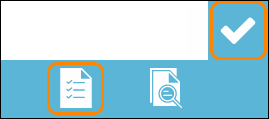
Locate and click the tool Exercise - the tool icon that looks like a check for a checkbox and choose the option A self-correcting exercise - the option with an icon that looks like a paper with a checklist.
An object is placed on your editing area.
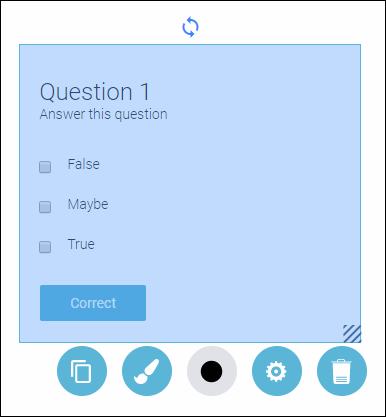
To edit your object double click on it.
In the top of the exercise you can see what type of exercises are available, just click on the small arrow and a drop-down menu will appear and there you can choose another type of self-correcting exercise.
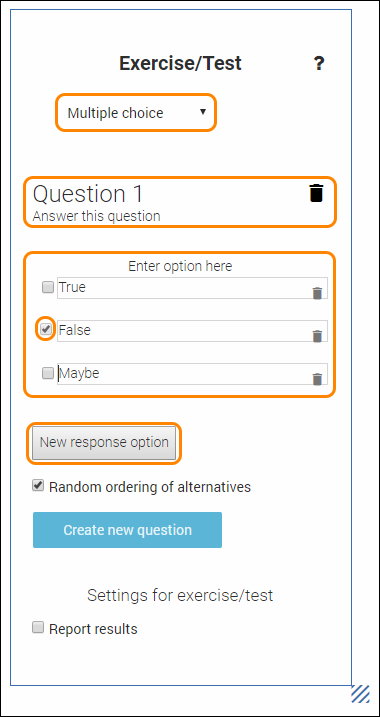
Click on any text you want to change and type in a question, instructions or the answer alternatives.
To delete alternatives, click the small icon of a trash bin to the right of the alternative you want to delete.
To add more alternatives, click on the button New response option.
To set which answer(s) is the correct one (you can, of course, have more than one correct answer), make sure to tick the checkbox in front of the correct answer.
Once you are done editing, click anywhere on the editing area, outside the object, to save your changes.
This is how an edited multiple-choice exercise can look:
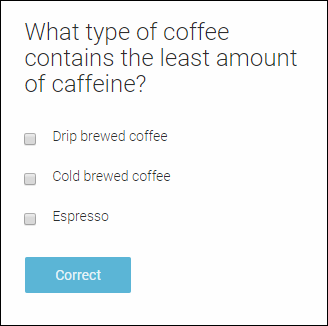
TIP! Since you are now in editing mode, you can’t test the Voting. To test it, you have to go into Preview mode. Locate and click the button Preview and your page will open in a new tab.
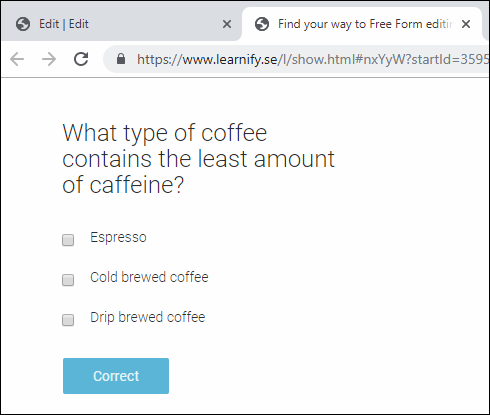
To use the exercise, tick the checkbox in front of your preferred answer and then locate and click the button Correct.
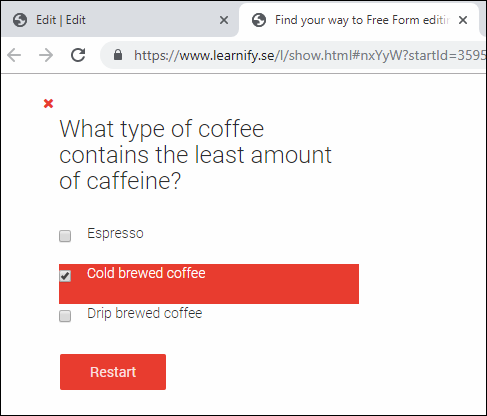
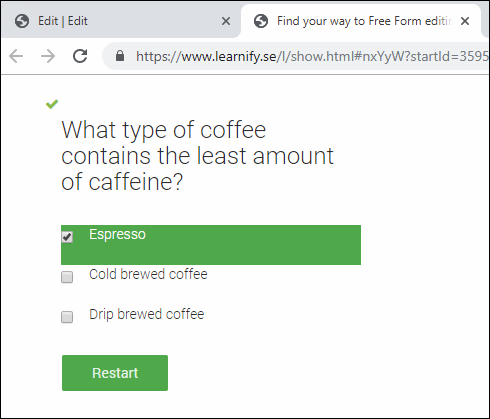
This is how the exercise looks when you have chosen the wrong, respectively the correct answer.
To get back to editing mode, close the active browser tab.
To save your changes, click anywhere on the editing area, outside the object.
To move your object, drag and drop it with the help of your mouse and place your object anywhere on the white editing area.
All settings for your object - see the guide “Settings for your object”.
0 Kommentarer